
Table of Contents
- What Is Data Loss Prevention (DLP)?
- Why Data Loss Prevention Matters More in the Age of AI
- Common Causes of Data Loss in Small Businesses
- The Three Types of DLP Solutions
- How Data Loss Prevention Works
- Examples of DLP in Action
- DLP for AI Tools: What Small Businesses Can Do Today
- Data Loss Prevention Best Practices for Small Businesses
- Benefits and Limitations of DLP
- DLP and Compliance
- How TechWorks Helps With Data Loss Prevention
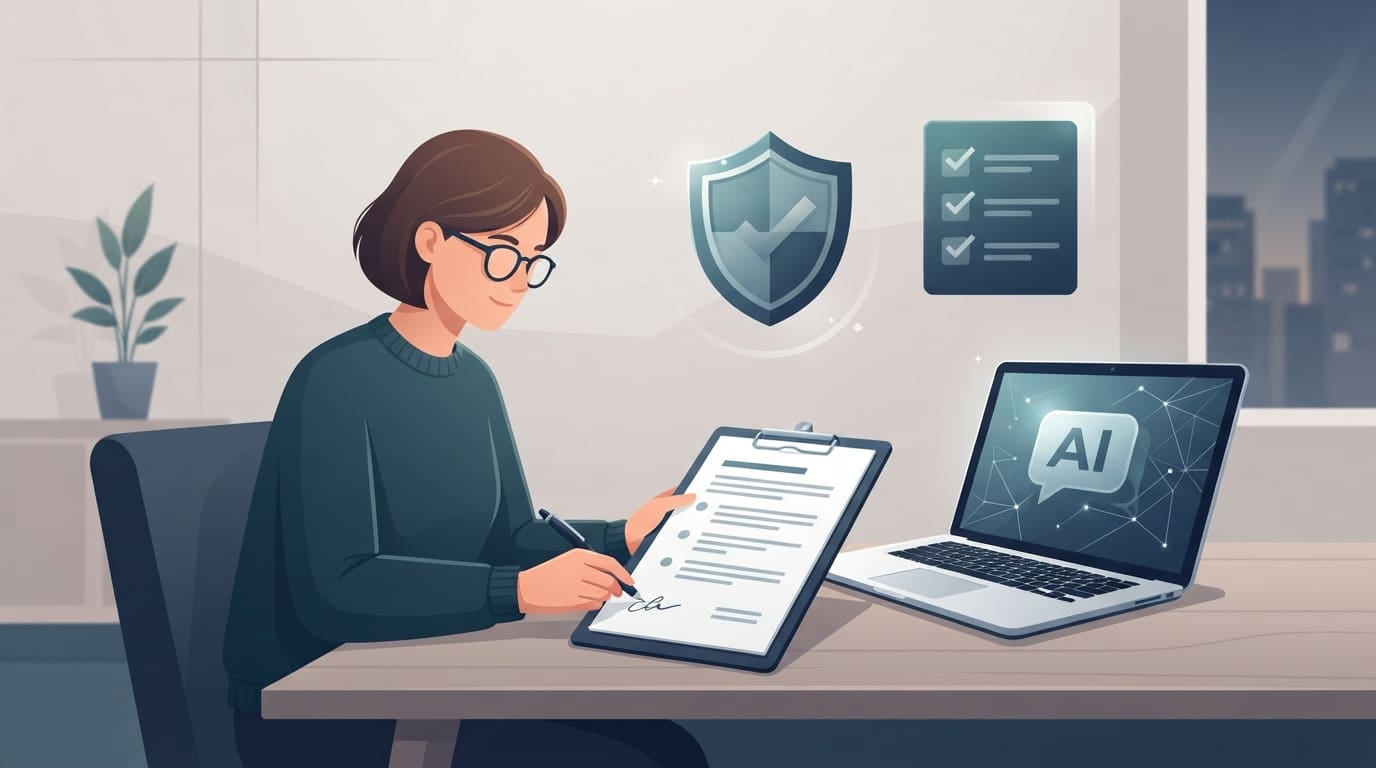
An office manager pastes last quarter's payroll spreadsheet into ChatGPT to build a summary for the owner. A paralegal uploads a client contract to a free AI tool to "pull out the key dates." Neither person thinks of it as a security incident, and nothing on their screen tells them otherwise. So what is data loss prevention, and how does it stop moments like these? In short, data loss prevention (DLP) is the set of tools and rules that spots sensitive information and stops it from leaving your business through the wrong channel, including the AI tools your employees already use every day.
This guide explains how DLP works, the types of DLP solutions, why AI has made it more urgent for small businesses, and the practical steps you can take with the tools you likely already pay for.
Key Takeaways
- Data loss prevention identifies sensitive data, such as client records, financials, and health information, and blocks or warns when someone tries to share it in an unsafe way.
- Public AI tools are now one of the most common ways sensitive data leaves a small business, usually by accident.
- Most small businesses on Microsoft 365 already have core DLP features available. They just haven't been turned on or configured.
- Start DLP in "audit" mode, learn how data actually moves, then add warnings and blocks where the risk is highest.
- DLP works best alongside an AI acceptable use policy, approved business AI accounts, web filtering, and employee training.
What Is Data Loss Prevention (DLP)?
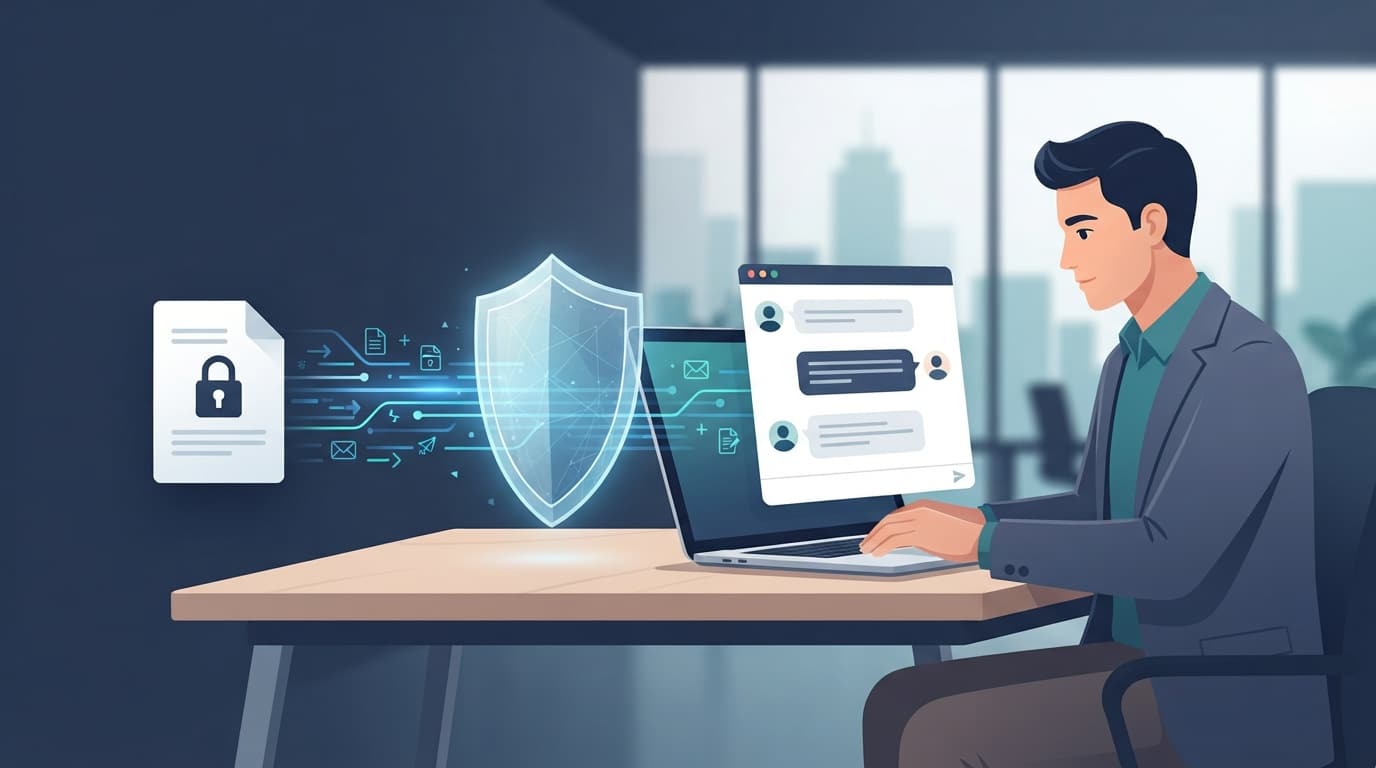
Data loss prevention is a combination of policies, processes, and technology that keeps sensitive information from being shared, copied, or sent somewhere it shouldn't go. A DLP system scans content for things like credit card numbers, Social Security numbers, patient information, or files marked confidential. When someone tries to move that data outside an approved channel, DLP can log it, warn the user, require a business reason, or block the action outright.
DLP protects data in three states:
- Data in use: information someone is actively working with on a laptop or desktop, such as copying text, printing, or pasting into a browser.
- Data in motion: information moving across a network, such as an email attachment, a file upload, or a message sent through a web form or chatbot.
- Data at rest: information sitting in storage, such as files in SharePoint, OneDrive, a file server, or a cloud drive.
The NIST definition covers all three for a reason. Data leaks rarely happen where you expect them, so protection has to follow the data wherever it goes.
It's also worth clearing up a common confusion: DLP is not the same as backup. Backups protect you when data is destroyed (a failed server, ransomware, an accidental deletion). DLP protects you when data is exposed to someone who shouldn't have it. A complete strategy needs both.
Why Data Loss Prevention Matters More in the Age of AI
For years, DLP was mostly about email attachments and USB drives. Generative AI changed that. Every chatbot text box is now a place where an employee can paste sensitive information in seconds, and from there it leaves your control entirely.
The cost of getting this wrong is real. IBM's Cost of a Data Breach Report puts the global average cost of a breach at $4.99 million. Small businesses pay less in absolute terms, but a single incident can still mean notification costs, legal fees, lost clients, and a harder time getting cyber insurance. IBM has also found that roughly a third of breaches involve "shadow data," information stored or moved somewhere IT doesn't know about. Gartner has forecast that by 2027, 17% of cyberattacks and data leaks will involve generative AI.
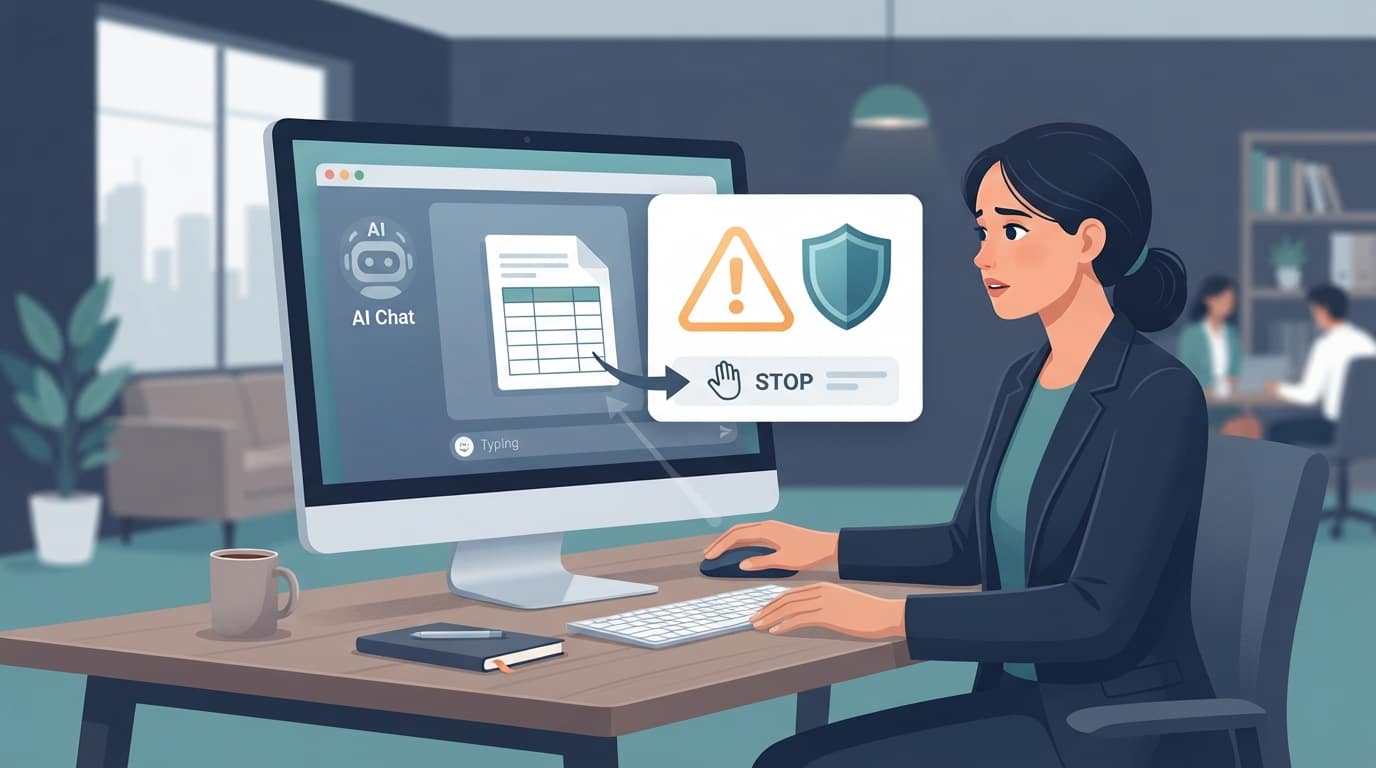
Here's how AI-related data loss typically happens in a small business:
- Free AI accounts. An employee uses a personal ChatGPT, Gemini, or Claude account for work. Depending on the tool's settings and terms, what they paste may be retained or used to train future models.
- Browser extensions and AI add-ons. "Helpful" AI extensions can read the contents of web pages and documents, including your CRM or accounting system.
- Meeting and note-taking bots. AI note-takers join calls and store transcripts on third-party servers, sometimes without everyone on the call knowing.
- Built-in AI with loose permissions. Tools like Microsoft 365 Copilot can only see what a user has access to, but in many small businesses users have access to far more than they need.
None of these are malicious. That's what makes them hard to catch without technical controls. If you haven't yet taken stock of which AI tools your team uses, our post on managing AI tools in your business is a good place to start.
Common Causes of Data Loss in Small Businesses
AI is the newest channel, but it isn't the only one. Most data loss in small businesses comes from a handful of familiar sources:
- Human error. Emailing a file to the wrong "John," attaching the wrong spreadsheet, or sharing a OneDrive link set to "anyone with the link."
- Oversharing and excess permissions. When everyone can open everything, one compromised account exposes everything. We've written before about how half of staff have too much access to data.
- Departing employees. Downloading client lists or pricing files before leaving for a competitor.
- Phishing and stolen credentials. An attacker who gets into one mailbox can forward sensitive messages to an outside address for weeks before anyone notices.
- Lost or stolen devices. An unencrypted laptop left in a car or a phone left at a restaurant.
- Unapproved apps (shadow IT). Personal Dropbox accounts, free file converters, and AI tools nobody approved.
The Three Types of DLP Solutions
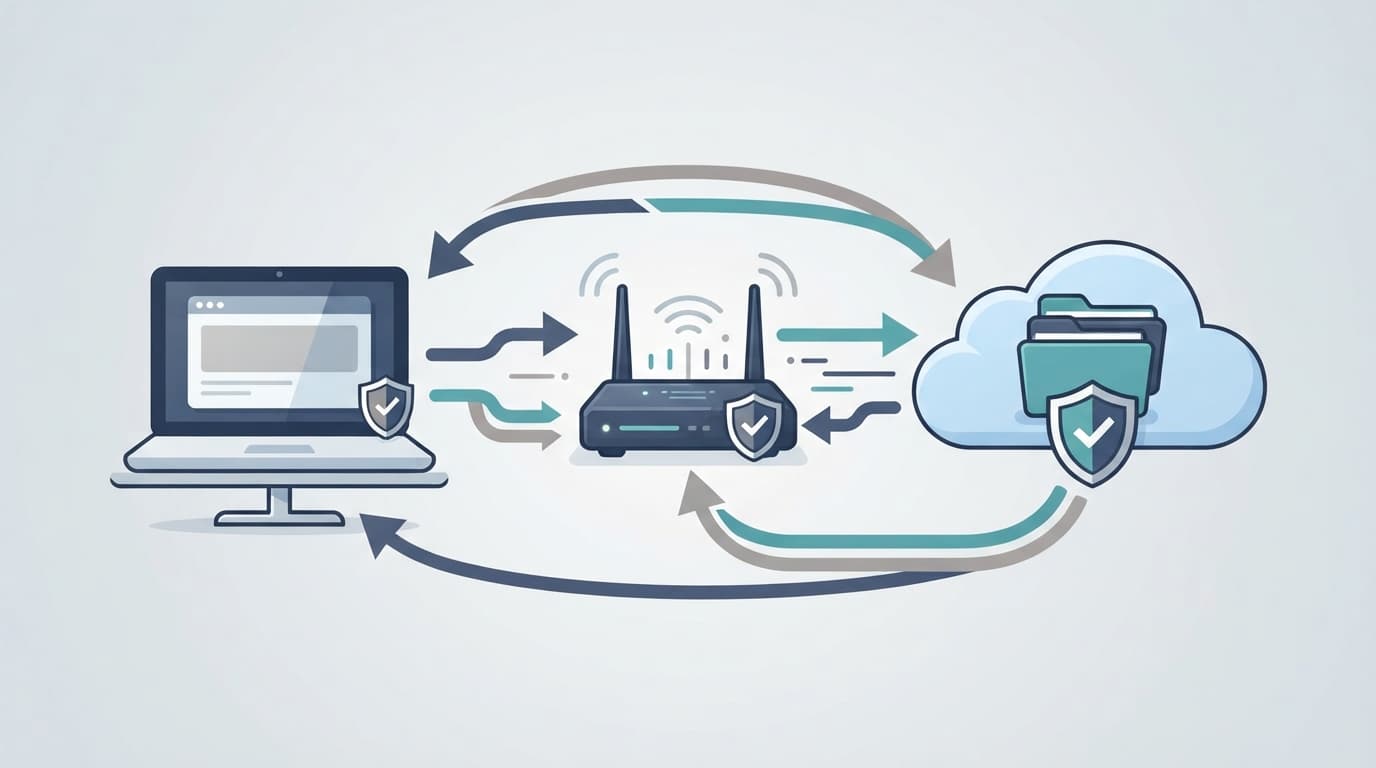
DLP tools are usually grouped by where they watch for sensitive data. Most businesses need some combination of all three.
Endpoint DLP
Endpoint DLP runs on laptops and desktops. It can see when someone copies sensitive data to a USB drive, prints it, uploads it to a website, or pastes it into a browser. For AI risk, endpoint DLP is especially important because it can detect sensitive content being pasted or uploaded into AI websites, even when the device is off the office network.
Network DLP
Network DLP inspects traffic leaving your network, typically at the firewall or through a cloud security service. It's useful for catching sensitive data in web uploads and unencrypted transfers, and for blocking connections to risky or unapproved sites.
Cloud DLP
Cloud DLP protects data inside cloud services like Microsoft 365, Google Workspace, and other business applications. It can stop a sensitive file in SharePoint from being shared externally, flag an email containing credit card numbers, or prevent confidential documents from being shared in Teams chats with guests.
How Data Loss Prevention Works
Whatever product you use, DLP follows the same basic cycle:
- Identify and classify. DLP finds sensitive data using built-in patterns (credit card and Social Security number formats, medical terms, bank account numbers), keywords you define, and sensitivity labels your team applies, such as "Confidential" or "Internal Only."
- Monitor. It watches how that data is used: who opens it, where it's sent, and which apps or websites it touches.
- Respond. When a rule is triggered, DLP takes the action you choose. That might be quietly logging the event, showing the user a "policy tip" warning, letting them override with a written business reason, or blocking the action entirely.
- Report. Alerts and reports show where sensitive data is moving, which rules fire most often, and which users or departments need more training.
The response options matter more than most people expect. A DLP setup that blocks everything frustrates employees and gets worked around. A setup that only logs events lets data walk out the door. The right balance usually starts with warnings and escalates to blocks for the highest-risk data and destinations.
Examples of DLP in Action
What does this look like day to day? Here are a few realistic scenarios from small business environments:
- A dental office: A front-desk employee tries to email a spreadsheet of patient names and insurance IDs to a personal Gmail address to "work on it from home." DLP blocks the message and alerts the practice manager.
- An accounting firm: A staff accountant pastes a client's tax return details into a free AI chatbot. Endpoint DLP detects Social Security numbers in the paste and stops it, with a pop-up pointing them to the firm's approved AI tool.
- A law firm: An associate tries to share a SharePoint folder labeled "Confidential" with an outside email address. DLP requires a business justification, logs the reason, and notifies the managing partner.
- A growing sales team: A departing rep starts downloading the full customer list to a USB drive. DLP blocks the copy and flags the activity for review.
In each case, the employee gets immediate feedback and the business gets a record, without anyone having to read every email or watch every screen.
DLP for AI Tools: What Small Businesses Can Do Today
You don't need an enterprise security budget to keep sensitive data out of public AI tools. If your business runs on Microsoft 365, many of the building blocks are already in your subscription. Here's a practical approach:
- Give people an approved AI tool. Blocking AI without offering an alternative just pushes employees to their phones. Microsoft 365 Copilot Chat, used while signed in with a work account, includes enterprise data protection, meaning prompts aren't used to train the underlying models. Paid business tiers of other AI tools offer similar commitments.
- Turn on Microsoft Purview DLP for email and files. Purview, Microsoft's compliance and data protection suite, includes ready-made policy templates for U.S. financial data, health information, and personal identifiers. These can warn or block when that data is emailed or shared outside the company.
- Apply sensitivity labels. Labels like "Confidential" travel with the document. Copilot respects them, and DLP rules can use them to decide what's allowed.
- Extend DLP to devices and browsers. Endpoint DLP can detect and block sensitive content being pasted or uploaded into unapproved AI websites. This is one of the most direct defenses against AI data leakage.
- Block or limit unapproved AI sites. Web filtering can block high-risk AI tools outright or allow them in a read-only, warning-first mode while you evaluate them.
- Clean up permissions before turning on Copilot. Fix "everyone" access on SharePoint sites and old sharing links so AI can't surface files people were never meant to see.
A note on licensing: Microsoft 365 Business Premium includes core DLP for Exchange, SharePoint, and OneDrive. Some advanced features, such as endpoint DLP and AI-specific browser controls, generally require higher-tier licenses or add-ons. An IT partner can tell you exactly what your current plan covers before you buy anything new. Our Microsoft 365 optimization reviews often find capabilities clients already own but have never turned on.
For the bigger picture on rolling out AI with the right guardrails, including policy, pilots, and choosing tools, see our guide to AI consulting for small business.
This short overview from TechTarget's Eye on Tech explains DLP in plain terms and is a good one to share with your team:
Data Loss Prevention Best Practices for Small Businesses
Enterprise DLP programs can take a year to roll out. A small business can get meaningful protection in a few weeks by following these steps in order.
- Find your sensitive data. List what you hold and where it lives: client records, employee files, financials, health information, contracts, and pricing. Include the places people forget, like shared mailboxes and old file shares.
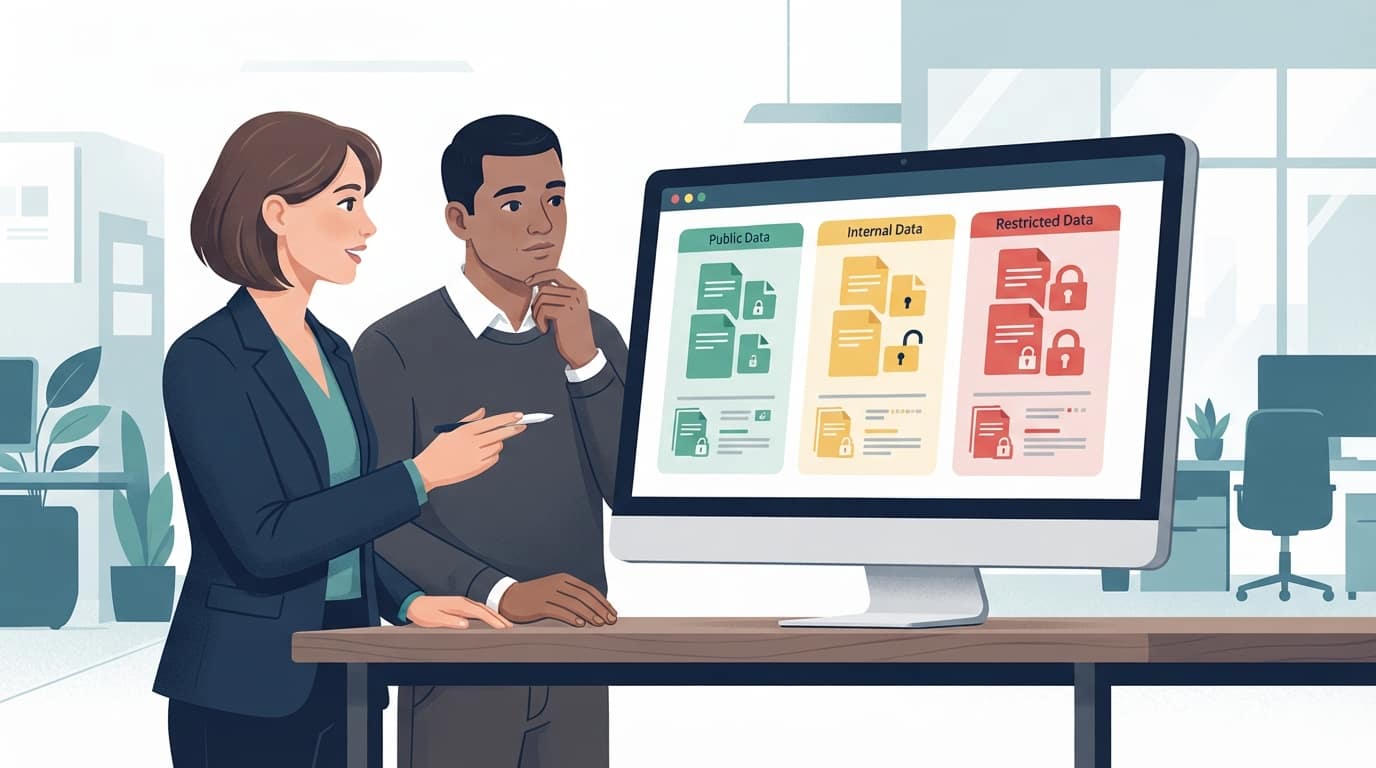
- Keep classification simple. Three tiers work for most small businesses: Public, Internal, and Restricted. Anything regulated or client-confidential goes in Restricted.
- Start in audit mode. Turn on DLP policies that log matches without blocking anything. Two to four weeks of data shows you how information actually moves and prevents you from breaking legitimate workflows.
- Add warnings before blocks. Policy tips teach employees in the moment. Save hard blocks for Restricted data going to personal email, external sharing, or unapproved AI tools.
- Write AI into your policy explicitly. Your acceptable use policy should name approved AI tools and state plainly that Restricted data never goes into a public AI tool.
- Tune out false positives. If a rule fires every time someone sends an invoice, people will learn to ignore it. Adjust thresholds and exceptions based on what audit mode showed you.
- Train your team. A 20-minute session on what DLP warnings mean and why they exist prevents most frustration and most incidents.
- Review quarterly. New AI tools, new staff, and new clients change your risk. Revisit rules, alerts, and exceptions at least every quarter.
- Pair DLP with backups and monitoring. DLP prevents exposure. Backups and disaster recovery protect you when data is lost or encrypted. You need both.
Benefits and Limitations of DLP
DLP is worth doing, but it's not magic. Go in with realistic expectations.
Benefits:
- Catches accidental leaks before they become reportable incidents.
- Gives you visibility into where sensitive data lives and how it moves.
- Supports compliance requirements and gives you records to show auditors, insurers, and clients.
- Teaches employees good habits through in-the-moment warnings.
Limitations:
- Poorly tuned rules create false positives and user frustration.
- DLP can't protect data it can't see, such as a photo of a screen taken with a personal phone.
- It requires ongoing attention. A policy set up once and never reviewed slowly becomes useless.
- Advanced features may require additional licensing.
DLP and Compliance
For many small businesses, compliance is what makes DLP non-negotiable. Dental and medical practices handling protected health information under HIPAA, businesses that take credit cards under PCI DSS, and financial and legal firms with confidentiality obligations all need to show they control where sensitive data goes. California businesses that meet the thresholds of the California Consumer Privacy Act (CCPA) have additional obligations around personal information.
Putting client data into an unapproved AI tool can create a compliance problem on its own, even if nothing is ever "breached" in the traditional sense. DLP gives you both the control and the audit trail to prove you're handling data responsibly. If you work in a regulated field, our dental office and financial services pages outline how we support those requirements.
How TechWorks Helps With Data Loss Prevention
For most small businesses, the challenge with DLP isn't buying a product. It's knowing what to turn on, how to tune it, and who will keep watching it. That's where a managed IT partner earns its keep.
TechWorks helps Southern California businesses put practical DLP in place as part of our cybersecurity services:
- A review of where your sensitive data lives and who can access it.
- Configuration of Microsoft Purview DLP policies and sensitivity labels that fit how your team works.
- AI-specific controls: approved tools, web filtering for unapproved AI sites, and permission cleanup before Copilot.
- Ongoing monitoring and quarterly tuning so your policies stay effective as tools and staff change.
- Plain-English staff training on what the warnings mean and why they matter.
If your team is using AI tools and you're not sure what's being shared, contact TechWorks for a data protection review. We'll show you where your sensitive data is going and what it takes to keep it where it belongs.
FAQs
What are examples of DLP?
Common examples include blocking an email that contains credit card or Social Security numbers from going to an outside address, stopping a confidential file from being shared externally in SharePoint or OneDrive, preventing sensitive data from being copied to a USB drive, and detecting when someone pastes client information into a public AI chatbot.
What are the three types of data loss prevention?
The three main types are endpoint DLP, which monitors laptops and desktops; network DLP, which inspects data leaving your network; and cloud DLP, which protects data stored and shared in services like Microsoft 365 and Google Workspace. Most businesses benefit from a combination of all three.
Is DLP outdated?
No, but it has changed. Older DLP focused mainly on email and USB drives. Modern DLP is built into cloud platforms like Microsoft 365, works with sensitivity labels, and can monitor browser activity, including uploads and pastes into AI tools. With generative AI creating new ways for data to leak, DLP is more relevant than ever.
What does a DLP violation mean?
A DLP violation means someone tried to use or share sensitive data in a way your policy doesn't allow, such as emailing restricted files to a personal account. Depending on how the policy is set, the action may be logged, the user may see a warning, they may need to give a business reason, or the action may be blocked. Most violations are accidental and are best handled with a quick conversation and training.
Does Microsoft 365 include data loss prevention?
Yes. Microsoft 365 Business Premium includes Microsoft Purview DLP for Exchange email, SharePoint, and OneDrive, along with sensitivity labels. Some advanced capabilities, such as endpoint DLP and certain AI-specific browser controls, generally require higher-tier licenses or add-ons. Check your current plan before buying a separate DLP product.