


Table of Contents
- Windows Server 2016 End of Life: Key Dates
- What Windows Server 2016 End of Support Actually Means
- Is Your Business Affected? How to Check
- Risks of Running Windows Server 2016 After End of Life
- Your Options Before Windows Server 2016 End of Life
- A 13-Week Windows Server 2016 End of Life Action Plan
- Common Mistakes to Avoid
- What Affects the Cost of Replacing a Windows Server 2016 Machine
- How TechWorks Helps With Windows Server 2016 End of Life
- FAQs
If your business still runs a server on Windows Server 2016, the clock is running out. Windows Server 2016 end of life arrives on January 12, 2027, when Microsoft stops releasing security updates for it. From mid-October, that leaves roughly 13 weeks to decide what to do, order hardware or licenses, migrate your data and applications, and test everything before the deadline.
The good news: 13 weeks is enough time for most small businesses if you start now. This guide explains what end of life actually means, how to tell if you're affected, your realistic options, and a week-by-week plan to get it done.
Key Takeaways
- Windows Server 2016 end of life is January 12, 2027, when extended support ends. After that, Microsoft releases no more free security updates or fixes.
- Your server won't stop working, but every new vulnerability discovered after that date stays open permanently unless you pay for Extended Security Updates.
- Most small businesses have four options: replace the server, upgrade in place, move workloads to the cloud, or buy time with Extended Security Updates.
- Servers running 2016 are often 7 to 10 years old, so this is usually a hardware decision as much as a software one.
- With about 13 weeks left, inventory and decisions need to happen in the next two weeks to leave time for ordering, migration, and testing.
Windows Server 2016 End of Life: Key Dates
Windows Server 2016 follows Microsoft's Fixed Lifecycle Policy, which gives each release five years of mainstream support followed by five years of extended support. Here's where things stand, according to Microsoft's official lifecycle page and its end of support announcement:
| Milestone | Date | What it means |
|---|---|---|
| Release | October 2016 | Windows Server 2016 becomes generally available. |
| End of mainstream support | January 2022 | No more new features or non-security fixes. Security updates continue. |
| End of extended support | January 12, 2027 | No more free security updates, bug fixes, or Microsoft technical support. |
| Extended Security Updates | After January 12, 2027 | Paid security-only updates, delivered through Azure Arc, for businesses that need more time. |
The Windows Server 2016 end of life deadline applies to all editions, including Standard, Datacenter, and Essentials. Essentials was a popular choice for small offices, so don't assume a smaller server is exempt.
What Windows Server 2016 End of Support Actually Means
"End of life" and "end of support" get used interchangeably, and both cause some confusion. Here's what Windows Server 2016 end of life changes on January 12, 2027, and what it doesn't.
What doesn't happen: Your server doesn't shut off. Files stay where they are, users can still log in, and applications keep running. Nothing visibly changes on January 13.
What does happen:
- No more security patches. When attackers find a new flaw in Windows Server 2016, Microsoft won't fix it for you. Every vulnerability discovered after the deadline stays open.
- No more technical support. If something breaks, Microsoft won't help troubleshoot it.
- Software vendors move on. Accounting, practice management, and line-of-business software vendors typically stop supporting their products on operating systems Microsoft no longer supports.
- Compliance gets harder. Auditors, cyber insurers, and client security questionnaires routinely ask whether you run unsupported software. "Yes" is the wrong answer.
In other words, the risk doesn't arrive all at once. It builds month after month as unpatched vulnerabilities pile up, which is exactly why attackers like targeting end-of-life systems.
Is Your Business Affected? How to Check
Before you can plan for Windows Server 2016 end of life, you need to know which of your servers run it. Many small businesses don't know what version their server runs. It was set up years ago, it works, and nobody has looked since. Here's how to find out:
- On the server itself: Press the Windows key, type winver, and press Enter. The window that opens shows the Windows Server version.
- Ask your IT provider: Any managed IT provider should be able to tell you within minutes from their monitoring tools.
- Check virtual machines too: If your server runs several virtual servers, each one has its own operating system. The host might be newer while a virtual machine inside it still runs 2016.
In a typical small business, a Windows Server 2016 machine is doing one or more of these jobs:
- Domain controller: handles user logins, passwords, and permissions for the office.
- File server: stores shared folders and departmental files.
- Line-of-business applications: accounting, practice management, dental imaging, CAD, or industry software with a server component.
- Databases: often SQL Server, which has its own lifecycle. SQL Server 2016 already reached the end of extended support in July 2026.
- Remote Desktop, print, or backup services.
Write down every role your server plays. That list drives every decision that follows.
Risks of Running Windows Server 2016 After End of Life
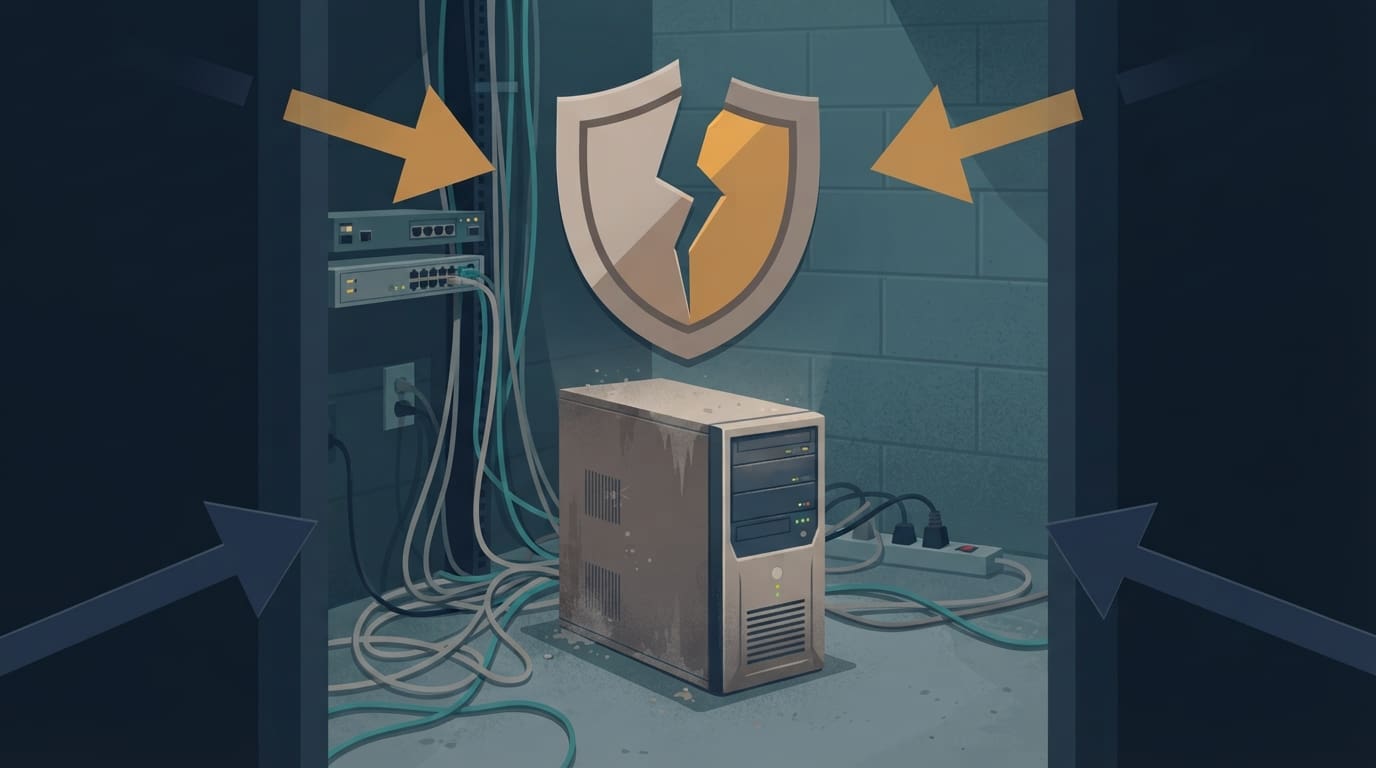
Some businesses plan to "just keep running it" after Windows Server 2016 end of life. Here's what that decision really carries:
- Security exposure. Servers are high-value targets because they hold your files, credentials, and databases. An unpatched domain controller can give an attacker the keys to every account in your office. Ransomware groups specifically scan for known vulnerabilities in unsupported systems.
- Compliance problems. HIPAA requires covered businesses to identify and reduce risks to patient data, and running an operating system that no longer receives security patches is hard to defend in a risk assessment. Financial services, legal, and PCI requirements raise similar concerns.
- Cyber insurance. Insurers increasingly ask about unsupported software during applications and renewals. An end-of-life server can mean higher premiums, exclusions, or a denied claim after an incident.
- Vendor support ends. When your accounting or practice management software vendor drops support, you may be stuck on an old version or unable to get help during an outage.
- Aging hardware. A server installed with Windows Server 2016 was likely purchased between 2016 and 2019. Hardware that old is well past the typical five-to-seven-year lifespan, and failure rates climb every year.
If you've already invested in extending your server's life, our guide on how to extend server lifespan and avoid a costly emergency replacement explains when that strategy stops making sense. Windows Server 2016 end of life is usually that point.
Your Options Before Windows Server 2016 End of Life

There's no single right way to handle Windows Server 2016 end of life. The best path depends on what your server does, how old the hardware is, and where your business is headed. Most small businesses choose one of these four options, or a combination.
Option 1: Replace the server and move to Windows Server 2025
For most small businesses with an aging server, this is the cleanest path. You get new hardware with a full warranty, a fresh installation of Windows Server 2025, and a supported platform well into the 2030s. Data and applications are migrated from the old server, and the old one is retired securely.
Best for: businesses with servers more than five years old, line-of-business applications that need to stay on site, or plans to keep a physical server for years to come.
Option 2: Upgrade the operating system on existing hardware
If your server hardware is newer and healthy (for example, a newer server that was loaded with 2016 for compatibility reasons), you may be able to upgrade the operating system without replacing the machine. Microsoft supports in-place upgrades from Windows Server 2016 to newer versions, though a clean installation is often more reliable on a system that has accumulated years of changes.
Best for: hardware under four or five years old that meets the requirements of the newer version and has a valid warranty.
Option 3: Move workloads to the cloud
Many small businesses discover they don't need an on-site server at all anymore. Files can move to SharePoint and OneDrive. User logins and device management can move to Microsoft Entra ID and Intune. Applications that still need a server can run in Azure or move to the vendor's cloud-hosted version.
Best for: businesses whose server mainly handles files and logins, teams with remote or hybrid staff, and owners who would rather not budget for another hardware refresh. Our cloud solutions page covers how we approach these migrations.
Option 4: Buy time with Extended Security Updates
Microsoft has announced Extended Security Updates (ESUs) for Windows Server 2016, delivered through Azure Arc, Microsoft's tool for managing on-premises servers from Azure. ESUs provide critical security patches after January 12, 2027, for a fee. Microsoft's previous ESU programs ran for up to three years, and workloads moved into Azure have historically received ESUs at no additional charge. Confirm current terms and pricing with your IT provider before you count on either.
Best for: businesses with an application that can't move yet, such as one waiting on a vendor upgrade. ESUs are a bridge, not a destination. You pay more each year to stand still, and you still end up migrating.
Which Windows Server version should you choose?
If you're moving to a new on-premises server, choose the newest version your applications support. Windows Server 2019 reaches end of extended support in January 2029, only two years after 2016. Windows Server 2022 is supported into 2031, and Windows Server 2025 into 2034. For most small businesses, Windows Server 2025 gives the longest runway and the strongest security features, which means you won't be repeating this project in two years.
Before you buy, confirm with each software vendor that their application supports the version you plan to install.
A 13-Week Windows Server 2016 End of Life Action Plan
Most competing guides assume you have 12 to 18 months. If you're reading this in the fall of 2026, you don't. Here's a realistic Windows Server 2016 end of life plan for a small business starting in mid-October.
Weeks 1 to 2: Inventory and decide
- Confirm which servers and virtual machines run Windows Server 2016.
- List every role each server performs and every application that depends on it.
- Contact software vendors to confirm supported versions and any migration requirements.
- Check hardware age and warranty status.
- Choose your path: replace, upgrade, cloud, or ESU bridge.
Weeks 3 to 5: Order and prepare
- Order server hardware and licenses now. Lead times and pricing can shift, and memory prices in particular have risen sharply. Our post on why RAM prices are so high explains what's driving hardware costs.
- Run a full, verified backup of the existing server and test that it restores.
- Plan the migration schedule around your business's busy periods. Year-end is a hard time for accounting and retail businesses, so plan around it.
Weeks 6 to 10: Migrate and test
- Build the new server or cloud environment.
- Migrate files, user accounts, permissions, and applications, usually after hours or over a weekend to limit disruption.
- Test every application with real users before calling it done.
- Update backup jobs, monitoring, and patch management to cover the new system.
Weeks 11 to 13: Decommission and document
- Keep the old server available but powered down for a short safety period, then retire it.
- Securely wipe and dispose of old drives. They contain years of business data.
- Document the new setup, passwords, and support contacts.
- If any workload can't move in time, enroll it in ESUs before January 12 so it stays protected.
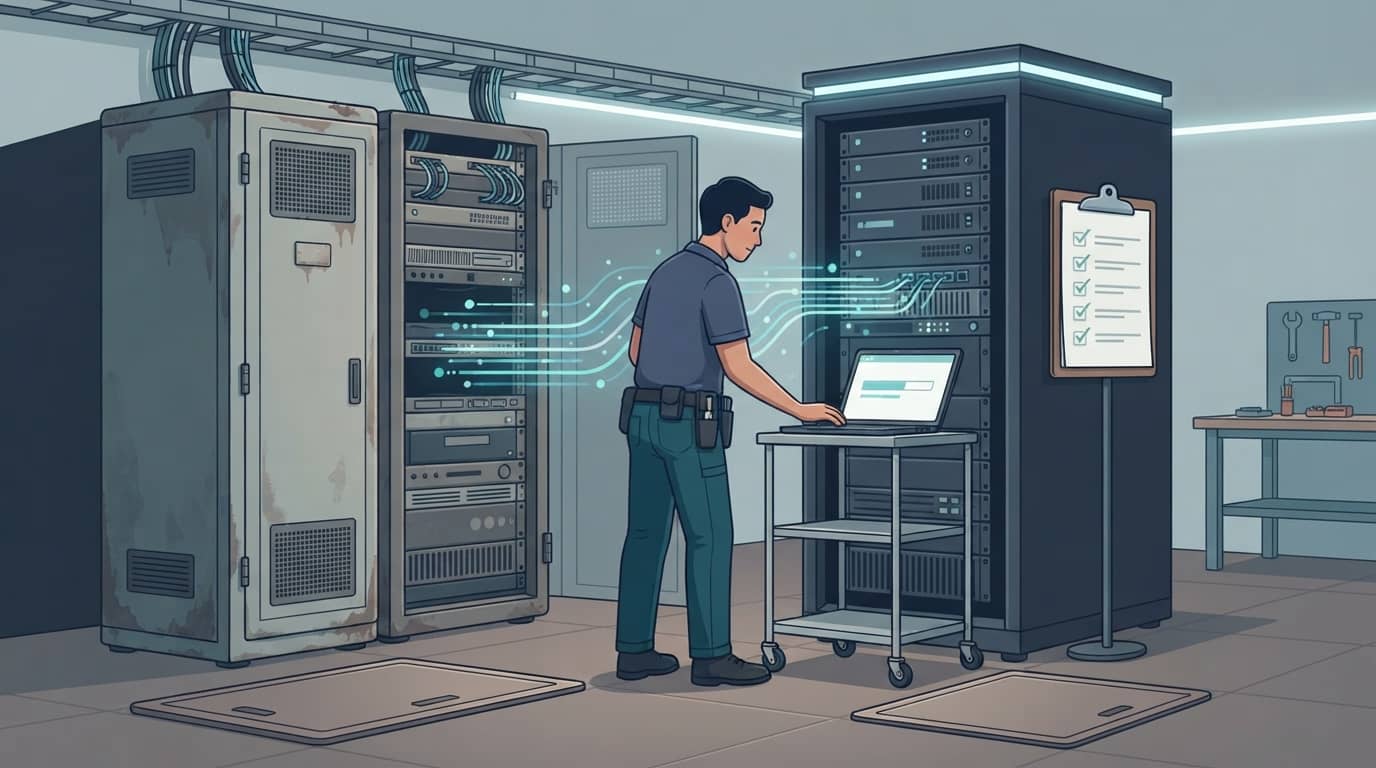
This short video gives a helpful overview of the end-of-life timeline and the options available:
Common Mistakes to Avoid
- Waiting for the server to fail. Hardware that has run for eight years can fail at any time, and an emergency replacement during an outage always costs more than a planned one.
- Forgetting virtual machines. A newer host server can still be running 2016 virtual machines that nobody remembers.
- Skipping the backup test. Don't start a migration until you've confirmed you can restore the old server from backup.
- Choosing Windows Server 2019 to save money. It's supported only until January 2029, so you'd repeat this project in about two years.
- Treating ESUs as a long-term plan. They cost more each year and only delay the decision.
- Leaving old drives in a closet. Retired servers hold years of client and financial data. Wipe or destroy drives properly.
What Affects the Cost of Replacing a Windows Server 2016 Machine
Every environment is different, but these are the factors that drive the budget for a Windows Server 2016 end of life project:
- Hardware: server size, storage capacity, redundancy (such as mirrored drives and dual power supplies), and warranty length.
- Licensing: Windows Server is licensed per processor core, with minimums per server, plus Client Access Licenses (CALs) for the users or devices that connect to it.
- Application migration: some line-of-business software needs vendor involvement or a paid upgrade to run on a newer server.
- Labor and downtime: planned after-hours work costs far less than an emergency recovery after a failure or breach.
- Cloud alternatives: moving to the cloud trades an upfront hardware purchase for a predictable monthly cost, and it can eliminate the next refresh cycle entirely.
The most expensive option is usually doing nothing until something breaks. An emergency replacement during an outage costs more, takes longer, and leaves you choosing hardware under pressure.
How TechWorks Helps With Windows Server 2016 End of Life
TechWorks helps Southern California businesses plan and complete server transitions without disrupting the workday. We handle the full process:
- A quick assessment of every server, its roles, and its applications.
- A clear recommendation: replace, upgrade, move to the cloud, or bridge with ESUs, with the reasoning behind it.
- Hardware and licensing quotes sized for your business, not an enterprise.
- After-hours migration, testing with your team, and secure disposal of old equipment.
- Ongoing protection afterward through our Server Care & Recovery plan, which includes monitoring, patching, and backup and recovery, starting at $599 per month.
The deadline won't move, and the weeks before the holidays fill up fast. Contact TechWorks today to schedule a Windows Server 2016 end of life assessment and lock in a migration date before January 12, 2027.
FAQs
Can I keep using Windows Server 2016 after January 12, 2027?
Technically, yes. The server will keep running. But it will no longer receive security updates, so every vulnerability discovered after that date stays open. For most businesses, that creates security, compliance, and cyber insurance problems that outweigh the cost of upgrading or migrating.
Can Windows Server 2016 be upgraded to Windows Server 2025?
Microsoft supports in-place upgrades from Windows Server 2016 to newer versions, including Windows Server 2025. However, many servers running 2016 are 7 or more years old, so replacing the hardware and doing a clean installation is often the more reliable choice. Always confirm your applications support the new version first.
Is Windows Server 2019 end of life?
Not yet. Windows Server 2019 reaches the end of extended support in January 2029. That's only about two years after Windows Server 2016, so most businesses replacing a 2016 server should choose Windows Server 2025 instead for a longer support window.
What's the difference between Windows Server 2016, 2019, 2022, and 2025?
Each newer version adds security features, better cloud integration, and a longer support lifecycle. Windows Server 2016 support ends in January 2027, 2019 in January 2029, 2022 in 2031, and 2025 in 2034. For a small business buying new, the support end date is usually the most important difference.
How much do Extended Security Updates for Windows Server 2016 cost?
Microsoft offers Windows Server 2016 Extended Security Updates through Azure Arc as a paid subscription, and pricing depends on the number of cores and the licensing setup. Previous ESU programs became more expensive each year. Ask your IT provider for a quote and compare it with the cost of migrating, since ESUs only delay the move.