
Table of Contents
Patch management is the routine of finding, testing, and installing software updates so that known security holes and bugs get closed before they cause trouble. It sounds like housekeeping, and most small businesses treat it that way, right up until an unpatched laptop or server turns out to be the door an attacker walked through.
This guide explains what patch management is, how the process works, and how often you should be patching, written for owners and office managers rather than system administrators. It also covers when it makes sense to hand the job to someone else.
Key Takeaways
- Patch management covers operating systems, business applications, and firmware on devices like firewalls, not just Windows updates.
- Most successful attacks use flaws that already have a fix available, which makes delayed patching one of the cheapest risks to remove.
- A repeatable process (inventory, prioritize, test, deploy, verify) matters more than any specific tool.
- Critical, actively exploited vulnerabilities should be patched within days, while routine updates can follow a monthly cycle.
- If nobody at your company owns patching, a managed IT provider can take it over and give you proof it's happening.
What Is Patch Management?
A patch is a small update released by a software maker to fix a specific problem. Patch management is the ongoing process of tracking which patches exist, deciding which ones your business needs, testing them, and rolling them out across every computer, server, and device you own.
Patches generally fall into three categories:
- Security patches close vulnerabilities that attackers can use to install malware, steal data, or take over a system. These are the highest priority.
- Bug fixes correct errors that cause crashes, slow performance, or odd behavior in software you rely on every day.
- Feature updates add or change functionality. They matter less for security but often arrive bundled with the fixes that do.
The scope is wider than most people expect. A complete patch management program covers:
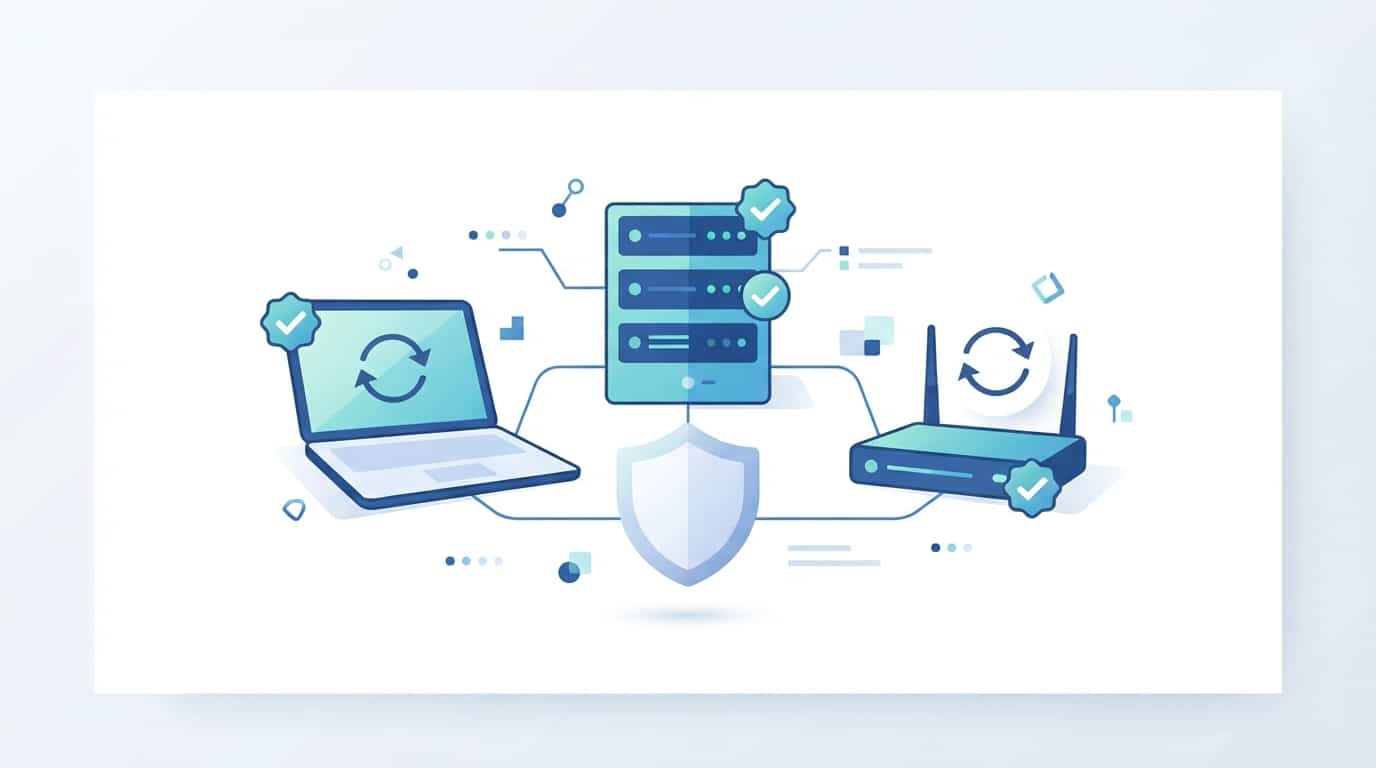
- Operating systems on workstations and servers, such as Windows and macOS
- Business applications, including Microsoft 365, web browsers, PDF readers, and video conferencing tools
- Firmware on network equipment like firewalls, switches, Wi-Fi access points, and printers
- Server software, databases, and the virtualization platform underneath them
Third-party applications and firmware are the pieces most often missed. Windows Update handles Windows well enough, but it won't patch the browser plugin, the accounting package, or the firewall in your closet.
Patching vs. Updating vs. Vulnerability Management
These terms get used interchangeably, but they aren't the same thing. An update is any new version of software, including ones that only add features. A patch is an update aimed at fixing a specific flaw. Vulnerability management is the wider practice of scanning your environment to find weaknesses, of which missing patches are only one kind. Others include weak passwords, misconfigured settings, and exposed services.
Patch management is the part of that picture where the fix already exists and just needs to be applied, which makes it the cheapest and most effective place to start.
Why Patch Management Matters for Your Business
The main reason is simple: attackers prefer flaws that are already public. Once a vendor releases a fix, the vulnerability it addresses becomes common knowledge, and criminals start scanning for businesses that haven't applied it yet. The gap between "patch available" and "patch installed" is exactly where most attacks live.
Two well-known incidents show how this plays out. The WannaCry ransomware outbreak in 2017 spread through a Windows flaw that Microsoft had already fixed two months earlier. Organizations that had installed the update were untouched, and those that hadn't, including many hospitals and clinics, lost access to their systems. The Equifax breach the same year exposed personal data on roughly 147 million people through a known flaw in a web application framework that had a fix available at the time.
Picture a 20-person accounting firm during tax season. One workstation has been putting off a browser update for two months because the user keeps clicking "remind me later." An employee opens a booby-trapped web page, the known flaw in the old browser lets malware install itself, and by the next morning client files are encrypted. The fix for that flaw had been sitting available the entire time.
Security isn't the only payoff:
- Fewer disruptions. Bug fixes remove the random crashes, freezes, and compatibility problems that eat into your team's day.
- Compliance. Regulations such as HIPAA and PCI DSS expect timely patching, and auditors will ask for proof. Our HIPAA IT compliance checklist shows where patching fits in for healthcare practices.
- Insurance. Cyber insurance applications increasingly ask how quickly you patch, and a weak answer can raise premiums or lead to a denied claim.
- Lower cost. Installing an update during a scheduled window costs a few minutes of planned downtime. Recovering from a breach costs days of lost work, and usually far more money.

The Patch Management Process, Step by Step
Good patching is a cycle, not a one-time project. Each step below feeds the next, and skipping one is where most gaps appear.
1. Inventory every device and application
You can't patch what you don't know you have. Start with a current list of every computer, server, laptop, network device, and piece of business software, along with the version each one is running. Include remote employees' laptops and any old machine sitting under a desk that's still on the network.
2. Monitor for new patches
Vendors publish updates on their own schedules, and security advisories can land at any time. Someone needs to watch for new releases from every vendor in your inventory, which is one reason tools and providers that do this automatically are so popular.
3. Prioritize by risk
Not every patch is equally urgent. Rank each one by how severe the vulnerability is, whether attackers are already exploiting it, and how important the affected system is to your business. A flaw in your internet-facing firewall outranks one in a rarely used desktop app.
4. Test before wide rollout
Occasionally a patch breaks something, such as a line-of-business application or a printer driver. Deploy to a small pilot group first, watch for problems for a day or two, and only then push to everyone. Keep a rollback plan for anything critical, like your servers.
5. Deploy, verify, and document
Roll patches out during a maintenance window, then confirm they actually installed. Failed installs and machines that were powered off are common, so verification is not optional. Keep a record of what was patched and when, since that record is what you'll show an auditor or insurer.
Prefer to see the idea explained visually? This short video covers what patch management is and why it matters:
How Fast Should You Patch?
There's no single legal standard for small businesses, but a common baseline looks like this:
- Actively exploited or critical vulnerabilities: within days. The CISA Known Exploited Vulnerabilities catalog lists flaws attackers are using right now, and it's a useful signal for what can't wait.
- High-severity vulnerabilities: within about two weeks.
- Routine monthly updates: Microsoft releases its regular updates on the second Tuesday of each month, known as Patch Tuesday. Test them, then deploy within two to four weeks.
- Firmware for firewalls, switches, and access points: review quarterly, and apply sooner whenever the vendor issues a security advisory.
If you operate under HIPAA, PCI DSS, or a similar framework, your requirements may be stricter, so treat these numbers as a floor.
Best Practices for Patch Management
- Automate whatever you can. Manual patching depends on someone remembering, and people get busy. Automated scanning, scheduling, and reporting keep the cycle running even when the office is hectic.
- Cover third-party apps and firmware. Patching Windows alone leaves browsers, PDF readers, and network gear exposed.
- Keep laptops in scope. Devices that rarely connect to the office network are easy to miss, so use tools that patch over the internet.
- Retire unsupported systems. Once a vendor ends support, the operating system stops receiving security patches entirely. Our post on Windows 10 extended support explains what that means in practice.
- Handle reboots. Many patches don't take effect until a restart, and employees who click "remind me later" for weeks leave systems half-protected. Set a deadline after which restarts happen automatically.
- Write it down. A one-page patch policy that names an owner, a schedule, and an escalation path prevents the "I thought you were handling it" problem.

Common Patch Management Mistakes
Small businesses tend to trip over the same handful of problems:
- Patching only Windows. The browser, the PDF reader, and the firewall are attack targets too.
- Assuming automatic updates are enough. Built-in updaters skip devices that are offline, fail silently, and don't report to anyone.
- Skipping testing. A bad patch on a Friday afternoon can take down the application your staff needs on Monday.
- Forgetting firmware. Firewalls and switches run for years without a single update, and that is exactly when their known flaws pile up.
- No owner. When patching belongs to "whoever has time," it belongs to nobody.
Signs Your Patching Has Gaps
You don't need a formal audit to spot the warning signs. If any of these sound familiar, your patching process needs attention:
- Nobody can say when the firewall or Wi-Fi equipment was last updated
- Some computers are still running Windows 10 or another unsupported operating system
- Laptops used mostly at home or on the road are months behind the office machines
- Employees routinely dismiss restart prompts for days or weeks
- You can't produce a list of what was patched last month
- Updates only happen when something breaks
One or two of these is common. Three or more usually means a real exposure, and it's worth fixing before an insurer, auditor, or attacker points it out.
DIY or Managed Patch Management?
A company with a dedicated IT team can run patching in-house. For a business with 5 to 100 employees and no IT staff, the honest question is who will do this every month, on schedule, without fail, and produce proof afterward. Often the answer is nobody, or the office manager on top of a full workload.
That's why patching is one of the first tasks small businesses hand to a managed IT provider. If you're evaluating one, ask these questions:
- Do you patch third-party applications and firmware, or only Windows?
- How do you test patches before rolling them out?
- What happens to laptops that are off the office network?
- How quickly do you respond to a critical, actively exploited vulnerability?
- Will I receive regular reports showing what was patched and what failed?
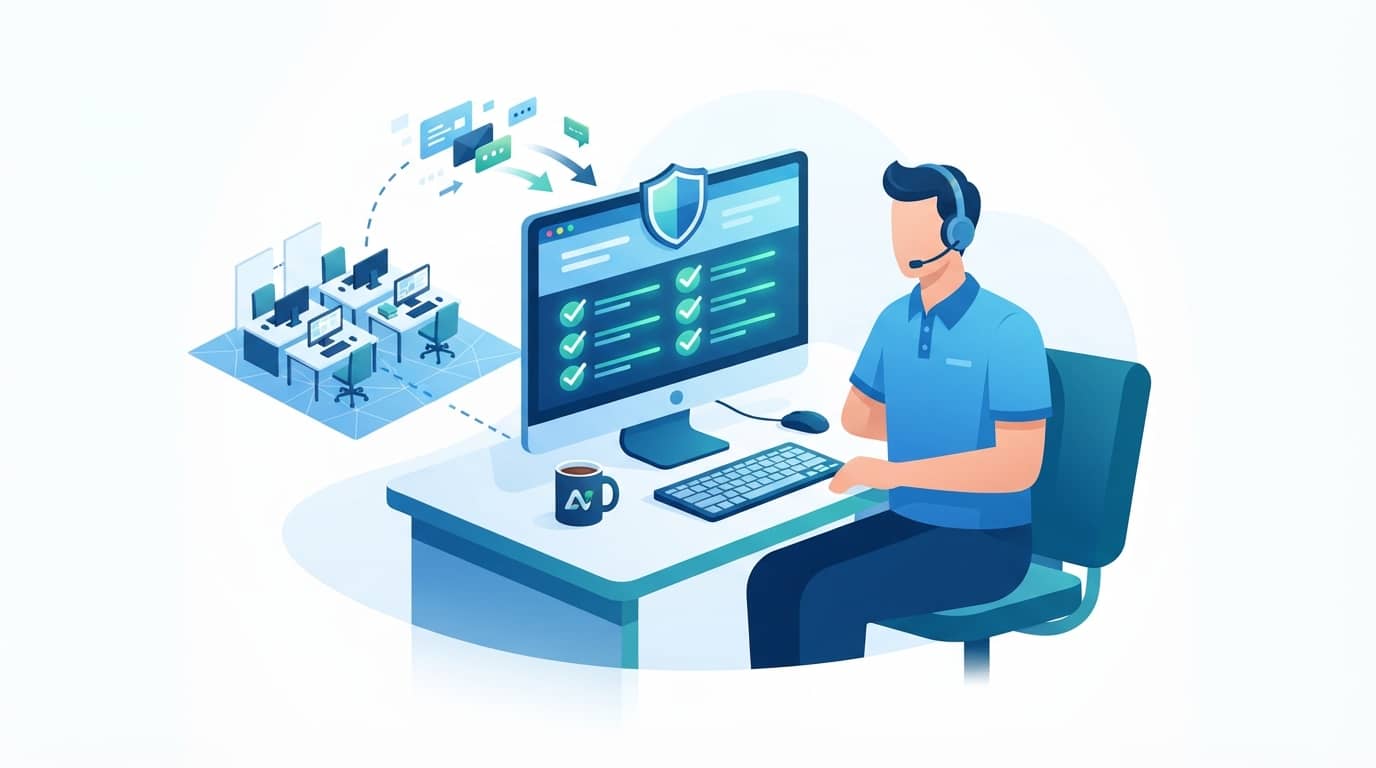
TechWorks handles this through its patch management service, which covers desktops and laptops, firewalls, and Wi-Fi and networking equipment, with regular inspections to find missing patches before they become a problem. If you'd like a quick read on how exposed your current setup is, get in touch and we'll walk through it with you.