
Table of Contents
- How Long Is the Average Server Lifespan?
- What Determines Your Server's Lifespan
- 13 Practical Ways to Extend Your Server's Life
- Upgrading Existing Hardware vs. Buying New
- Warning Signs It's Time to Replace, Not Upgrade
- What a Server Refresh Project Actually Involves
- Why This Is a Project Worth Running with an MSP
- FAQs
A server that keeps running isn't the same as a server that should keep running. Most businesses treat server lifespan as fixed, the 3 to 5 year window a manufacturer's warranty covers, and stretch their hardware past that point without a real plan. The risk compounds quietly: the odds of a drive, power supply, or fan failing climb every year a server ages, while the OS underneath it may be sliding toward the end of vendor support at the same time.
That rising failure risk is the part most refresh planning misses. A server that's five or six years old isn't just older, it's statistically far more likely to have a hardware failure this year than it was in year one, simply because moving parts like drives, fans, and power supplies accumulate wear over time. Planning around that reality, rather than being surprised by it, is what separates a well-managed aging server from one that turns a normal component failure into an unplanned outage.
The good news is that server lifespan isn't actually fixed. With the right maintenance, monitoring, and upgrade decisions, a business server built for a 3 to 5 year refresh cycle can often run reliably for 7 to 10 years or more. This guide walks through what actually determines how long a server lasts, the practical steps that extend server lifespan, how to decide between upgrading and replacing, and why most SMBs get better outcomes running this kind of project with a managed IT provider (MSP) rather than alone.
Key Takeaways
- Business server lifespan (3 to 5 years) and physical server lifespan (7 to 10+ years) are different numbers. Good maintenance closes the gap between them.
- Adding RAM and storage is usually far cheaper than a full server replacement and can add years of useful life.
- Aging hardware fails more often, which is exactly why a BDR appliance configured as a standby Hyper-V host matters: it gives you a ready backup host that can take over in minutes if the primary server goes down.
- Operating system and software licensing status often forces a replacement decision well before the hardware itself is worn out.
- An MSP brings a maintenance schedule, monitoring, licensing knowledge, and a tested failover plan to a server lifespan extension project that's hard to replicate with in-house effort alone.
How Long Is the Average Server Lifespan?
Ask five IT professionals how long a server lifespan should be and you'll get five different answers, mostly because there are two different questions hiding inside that one.
The business lifecycle is the 3 to 5 year window most manufacturers build their warranty and support programs around. It's the number that shows up in budget planning and the one vendors use to nudge businesses toward a refresh.
The physical server lifespan is longer, often 7 to 10 years or more for enterprise-grade hardware, and sometimes beyond that for well-maintained tower and rack servers running in a clean, climate-controlled space. Components without moving parts, like CPUs, motherboards, and RAM, don't wear out from continuous use the way a hard drive or fan does. A server that's kept cool, clean, and current on firmware can often run well past its original warranty window.
The gap between those two numbers is where a server lifespan strategy pays off. Extending useful life from 3 years to 6 or 7 years doesn't just delay a purchase, it can roughly cut the server's annual cost in half once you account for depreciation, migration labor, and the business disruption a replacement project creates.
Lifespan Varies by Server Type
The form factor of the server itself changes the math. A few rough benchmarks for well-maintained enterprise hardware:
- Tower servers typically last 5 to 7 years. Their larger case allows better airflow and easier access for maintenance, which is part of why they remain popular with smaller offices running a single on-site server.
- Rack servers generally run 4 to 6 years. They're built for data center density rather than maximum airflow, so environmental control matters more here than with a tower.
- Blade servers tend to run shorter, around 3 to 5 years, because their compact, high-density design creates more thermal stress on components.
- Virtualized environments can stretch to 5 to 8 years of useful life, since workloads can migrate between physical hosts as individual pieces of hardware age out, rather than the whole environment needing to be replaced at once.
What Determines Your Server's Lifespan
Five factors do most of the work in deciding whether a server ages gracefully or starts failing early.
- Environment. Temperature, humidity, and dust are the biggest physical stressors. A server running warm in a closet ages faster than the same hardware in a properly cooled server room, and the effect compounds: consistently high temperatures don't just risk a single failure, they shorten the working life of every component at once.
- Workload. A database or application server under sustained high CPU load wears components faster than a file server handling light, intermittent traffic. The type of work a server does, not just its age, should factor into how aggressively you monitor and maintain it.
- Hardware quality. Enterprise-grade servers from established vendors are built with better thermal management and more durable components than consumer-grade equipment repurposed for business use. Two servers bought the same year can age very differently based on this alone.
- Maintenance practices. This is the factor a business actually controls day to day, and it has an outsized effect on lifespan. Proactive care can double or even triple a server lifespan compared to running it until something breaks.
- Technology and support timelines. A server can be mechanically fine and still need replacing because the operating system it runs has reached end of life, or the software it hosts no longer supports the platform. This factor is often what actually ends a server's life, well before the hardware itself gives out.
Maintenance is worth dwelling on, because it's the one factor a business can act on immediately without spending anything on new hardware.

13 Practical Ways to Extend Your Server's Life
These are the specific, actionable steps that push a server lifespan past its expected refresh date without adding unacceptable risk.
- Control the environment. Keep the server room between roughly 68 to 71 degrees Fahrenheit with 40 to 60 percent humidity, and make sure intake air is filtered. Every 10 degree Celsius rise in operating temperature can roughly cut component lifespan in half, so this single change often has the biggest payoff of anything on this list.
- Build a real maintenance schedule. Daily checks on temperature, logs, and backup completion; weekly health checks and patch application; monthly firmware updates and dust cleaning; and a quarterly hardware diagnostic and capacity review. Ad hoc maintenance is the most common reason otherwise-healthy hardware fails early.
- Apply firmware, driver, and OS updates on schedule. Vendor firmware updates frequently include fixes for power management, thermal handling, and drive controller behavior, not just security patches. Skipping them leaves performance and reliability improvements on the table.
- Monitor proactively, not reactively. SMART data on hard drives can flag a failing drive weeks before it dies. Temperature alerts, power supply monitoring, and log review catch problems while they're still cheap to fix.
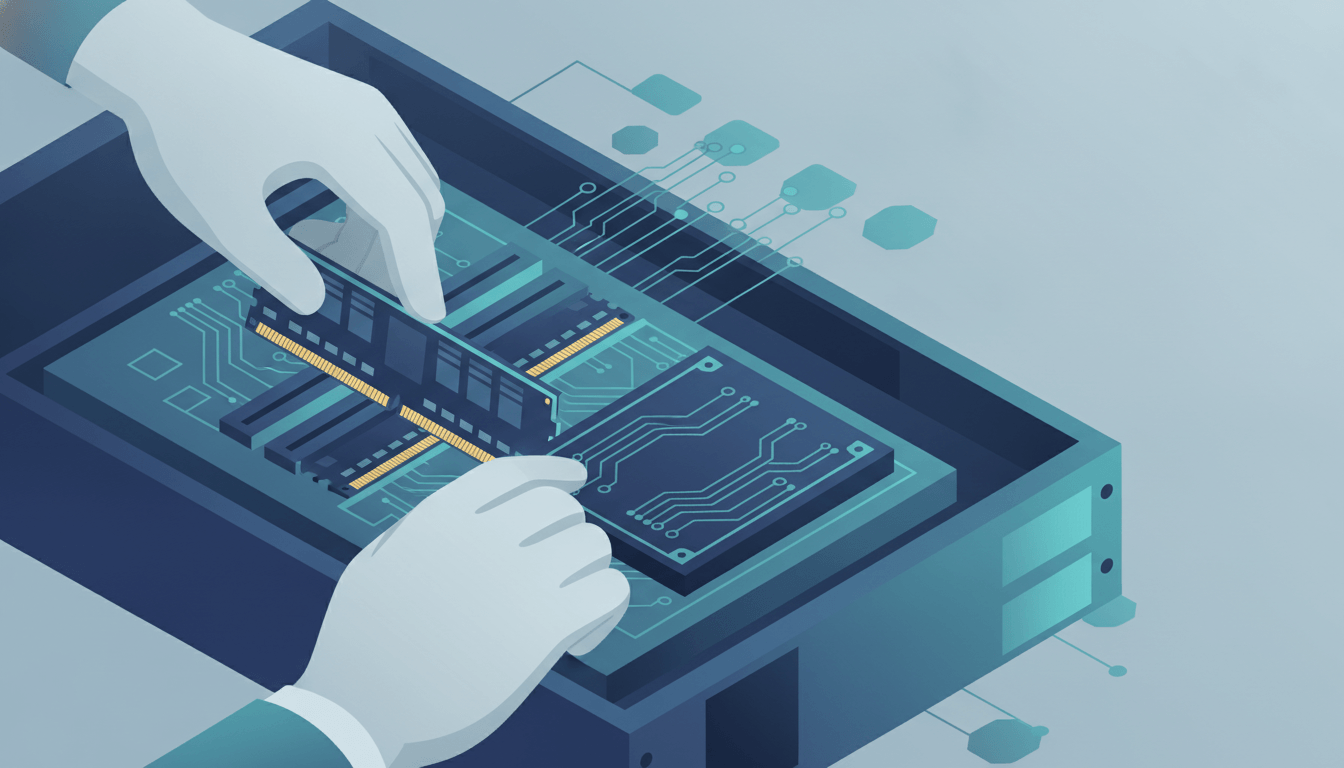
- Add storage before you run out of room. Running low on disk space is one of the most common reasons businesses jump straight to a full replacement. In many cases, adding drives or upgrading to SSDs in the existing chassis solves the actual problem at a fraction of the cost, and SSDs typically extend a server's operational life by 20 to 40 percent since they have no moving parts to fail.
- Add RAM before you assume you need a new server. Memory is one of the cheapest, highest-return upgrades available. If a server is struggling with slow application response or database queries, more RAM is often the fix, not a new box.
- Keep operating system and software licensing current. An aging server running an unsupported OS is a compounding risk: no security patches, no vendor support, and often no compatibility with current line-of-business software. Budget for OS and license renewals as part of the maintenance plan rather than letting them lapse and force an emergency decision.
- Use RAID or another redundancy configuration. A single failed drive shouldn't take down the whole server. Redundant storage buys time to replace a failing component on a planned schedule instead of during an outage.
- Virtualize and balance workloads. Running multiple workloads as virtual machines on well-provisioned hardware, rather than one application per physical box, gets more useful life out of existing servers and makes it easier to shift load off aging hardware as it starts to show strain.
- Clean the hardware itself. Dust blocks airflow, traps heat, and forces fans to work harder, which shortens their life and everything around them. A scheduled physical cleaning, not just software maintenance, belongs on the calendar.
- Keep a plan for the parts most likely to fail. Drives, power supplies, and fans wear out well before the rest of the server. Knowing which spare or replacement parts are available, and how quickly they can be sourced, turns a component failure into a quick fix instead of an extended outage.
- Track performance trends, not just point-in-time snapshots. A single slow day doesn't mean much. A steady month-over-month climb in CPU load, backup duration, or error rates tells you a server is approaching its limits well before it fails outright, and gives you time to plan rather than react.
- Configure a BDR appliance as a standby Hyper-V host. This is the tip that matters most as a server ages, because the odds of a hardware failure rise every year past the original warranty. A properly configured backup and disaster recovery appliance doesn't just store backups, it can run as a Hyper-V host in its own right. If the primary server fails, you spin up the affected workloads on the BDR appliance and keep the business running while the primary hardware is repaired or replaced, instead of facing hours or days of downtime. This is also why regularly testing your disaster recovery plan matters just as much as building it: a failover host that's never been tested is a plan on paper, not a working safety net. Pair this with a managed backup and disaster recovery plan and you turn an aging server from a growing liability into a much more manageable risk.
Upgrading Existing Hardware vs. Buying New
Not every aging server needs to be replaced, and not every one should be kept. The right call usually comes down to comparing the cost of upgrading against the cost, downtime, and risk of a full replacement.
| Upgrade existing hardware when... | Buy new hardware when... |
|---|---|
| The server is still within its physical lifespan (roughly 7 to 10 years for well-maintained enterprise hardware) | The hardware is approaching or past 10 years old, or has had multiple component failures in the last 6 months |
| The bottleneck is storage or RAM, not CPU or overall platform capability | The workload has genuinely outgrown what the platform can deliver, even with upgrades |
| The operating system and vendor firmware are still supported | The OS or hardware platform has reached end of support and can't be safely extended |
| Repair and upgrade costs stay under roughly 50 percent of the cost of a new server per year | Maintenance costs are climbing past that threshold, or exceeding a few hundred dollars a month |
| Downtime for a mid-life upgrade can be scheduled during off-hours with minimal disruption | The business has grown enough that a planned migration to new, right-sized hardware makes more sense than another patch |
As a rule of thumb: extending a server lifespan from a 3 year to a 6 year replacement cycle through targeted upgrades and maintenance can roughly cut its annual cost of ownership in half. Picture a $6,000 server: replaced every 3 years, it works out to $2,000 a year in depreciation alone, before counting migration labor and the downtime a cutover creates. Stretch that same server lifespan to 6 years with a RAM upgrade, a couple of storage additions, and consistent maintenance, and the annual cost drops to around $1,000, with far fewer disruptive migration projects along the way.
That math changes fast, though, once licensing, support, or reliability problems enter the picture, which is why the decision benefits from an outside, unbiased assessment rather than a default "just replace it" or "just keep it running" instinct. It's also worth checking with your accountant how the timing interacts with depreciation schedules. Extending a server's useful life or replacing it earlier than planned can shift how the asset is written off, and that's a conversation worth having alongside the technical decision, not after it.
For a walkthrough of what a proactive server maintenance routine actually looks like day to day, this short guide covers the same ground from a hands-on angle:
Warning Signs It's Time to Replace, Not Upgrade
Some signals mean it's time to stop investing in the current hardware, even if it hasn't failed outright yet.
- Hardware failures happening monthly or more often. An isolated failed drive is normal wear. A pattern of recurring failures across different components means the whole system is aging out at once.
- Repair or upgrade costs regularly exceeding half the price of comparable new hardware. Past this point, you're spending real money to keep an asset that's still losing value and reliability.
- Vendor support for the operating system or the server platform has ended. No more security patches means every day of continued use adds risk that doesn't show up on a maintenance checklist.
- Application or database performance can't meet current business needs even after adding RAM and storage. When the platform itself, not just its components, is the bottleneck, upgrades stop paying off.
- Backup windows are stretching longer and longer. This is a common early sign that hardware is struggling to keep up, often before users notice slowness anywhere else.
Seeing two or three of these signs at once is a better trigger for replacement planning than waiting for a full outage to force the decision.
Quick Self-Check: Is Your Server a Good Candidate for Life Extension?
If most of these are true, upgrading is likely the right next step rather than a full replacement:
- The server is under 7 years old and hasn't had more than one or two isolated component failures
- The operating system and firmware are still receiving vendor updates
- Slow performance traces back to RAM or storage, not the underlying platform
- There's no backup or failover plan in place yet, which upgrading and adding a BDR appliance can solve without a full hardware swap
- The budget for a full replacement isn't there this year, but a few hundred dollars in upgrades is
If two or more of these don't hold true, revisit the warning signs above and start planning a refresh on your own timeline instead of waiting for a failure to force one.
What a Server Refresh Project Actually Involves
When upgrading no longer makes sense, a server refresh is more than swapping one box for another. A well-run project typically includes:
- Sizing and buying new hardware, storage, and RAM. The new server should be sized for the next 5 to 7 years of growth, not just current usage, so it doesn't need a second refresh project shortly after the first.
- Confirming operating system and software licensing. A hardware refresh is also the moment to check whether existing OS and application licenses transfer, need renewal, or require an upgrade tier, since licensing gaps are a common source of last-minute delays.
- Planning the cutover and testing the migration. Moving workloads, data, and configurations to new hardware with minimal downtime takes a tested plan, not a weekend improvisation.
- Updating the BDR and backup configuration. The failover setup on the BDR appliance needs to be reconfigured and retested against the new server, not left pointed at hardware that no longer exists.
- Properly decommissioning the old server. Retired hardware still holds business data and needs certified data destruction and responsible disposal, not a spot in a storage closet or a curbside pickup.
Why This Is a Project Worth Running with an MSP
Extending a server's life isn't a single task, it's an ongoing discipline: a maintenance schedule that actually gets followed, monitoring that catches problems early, licensing that gets renewed on time, and a tested failover plan for the day something does go wrong. Most small businesses don't have the internal bandwidth to run all of that consistently on top of everything else IT is responsible for.
An MSP brings a few concrete advantages to a server lifespan extension project:
- A maintenance schedule that actually happens. Patching, firmware updates, and physical cleaning get skipped when they compete with daily fires. A managed provider treats them as recurring, tracked work.
- Proactive monitoring. Catching a failing drive or a rising temperature trend before it becomes an outage requires tools and eyes on the data around the clock, not a quarterly check-in.
- Licensing and upgrade guidance. Knowing when an OS or software license is approaching end of support, and what the real upgrade path costs, prevents both premature replacements and risky delays.
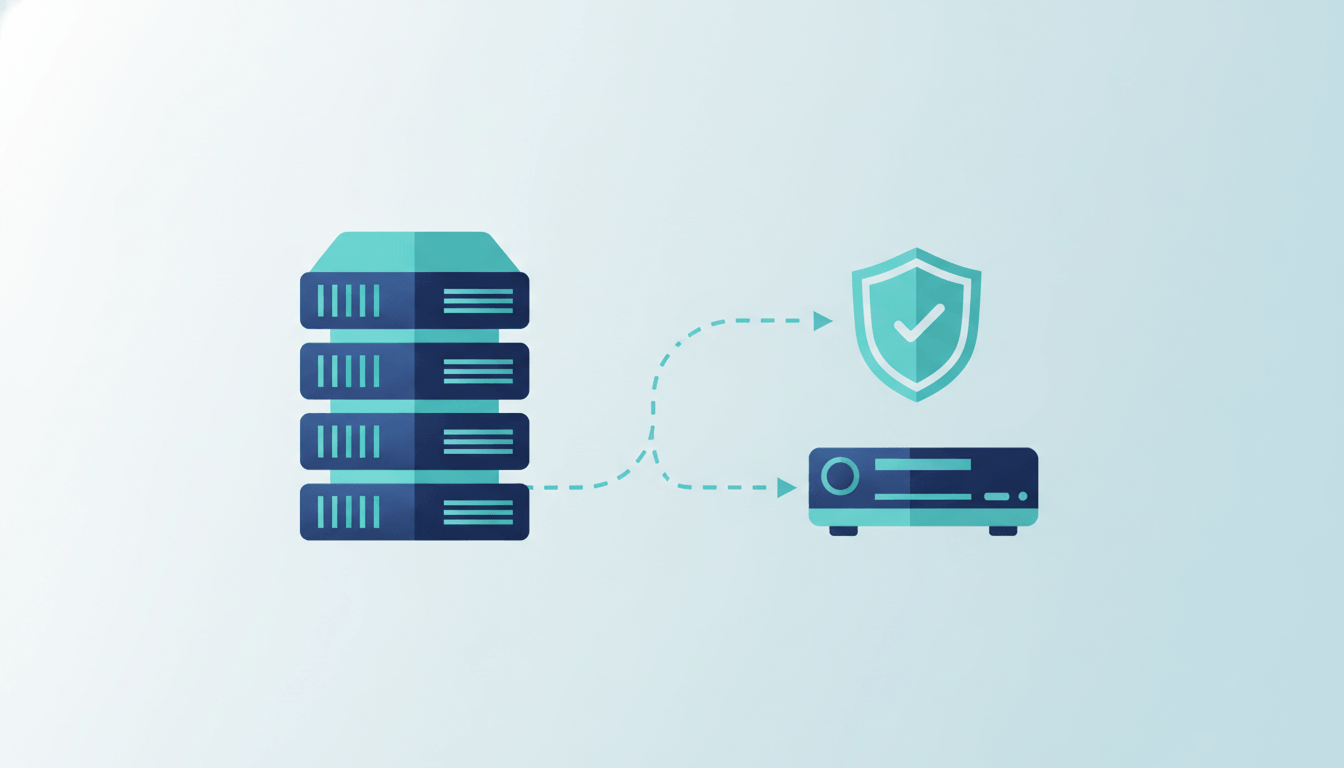
- A tested BDR and failover setup. Configuring a BDR appliance as a standby Hyper-V host is only useful if it's tested and ready to go. An MSP builds and verifies that failover plan as part of ongoing server care and recovery, rather than leaving it as a one-time setup nobody revisits.
- An objective upgrade-vs-replace call. Because an MSP isn't trying to sell a specific box, the recommendation is based on your actual failure risk, workload, and budget rather than a vendor's refresh cycle.
- Procurement and asset tracking. When a refresh does become the right call, an MSP handles vendor sourcing for hardware, storage, and licensing, and keeps the resulting assets tracked against a lifecycle plan going forward as part of broader IT asset management, instead of the next refresh decision starting from scratch.
If your server is a few years into its life and you haven't reassessed the maintenance plan, storage headroom, or backup failover setup recently, that's the right moment for a review, not after the first hardware failure. Reach out to TechWorks to talk through where your server stands and what a server lifespan extension plan would look like for your business.
FAQs
What is the average lifespan of a server?
Most business servers are budgeted for a 3 to 5 year replacement cycle, but the physical hardware often lasts 7 to 10 years or more when it's kept clean, cool, and properly maintained. Tower servers tend to last longest, often 5 to 7 years, while blade servers run on the shorter end due to their compact, high-density design.
How often should a server be replaced?
There's no fixed number that fits every business. Replace a server when repair or upgrade costs regularly exceed about half the cost of new hardware, when the operating system or platform loses vendor support, or when performance can't keep up even after adding RAM and storage. Otherwise, a well-maintained server can often keep running well past its original 3 to 5 year warranty window.
Can I extend my server's life instead of replacing it?
In many cases, yes. Adding RAM or storage, keeping firmware and the OS current, controlling temperature and humidity, and following a real maintenance schedule can extend a server's useful life by several years at a fraction of the cost of a full replacement. The exception is when the OS or platform itself has reached end of support, since no amount of maintenance fixes that.
What is a BDR appliance and how does it help if my server fails?
A backup and disaster recovery (BDR) appliance stores backups of your server and, when properly configured, can also run as a standby Hyper-V host in its own right. If your primary server fails, which becomes more likely every year past its warranty, you can spin up the affected workloads directly on the BDR appliance and keep the business running while the primary hardware is repaired or replaced.
Should I upgrade my current server or buy a new one?
Upgrade if the server is still within its physical lifespan, the OS and firmware are still supported, and the bottleneck is storage or RAM rather than the underlying platform. Lean toward buying new if the hardware is approaching or past 10 years old, has had several component failures recently, or vendor support has ended. An MSP can give an objective read on which situation you're actually in.