
Table of Contents
- What Are Immutable Backups?
- Why Ransomware Goes After Your Backups First
- How Immutable Backups Work
- Immutable vs. Traditional vs. Air-Gapped Backups
- What Immutable Backups Won't Protect You From
- What Immutable Backups Look Like for a Small Business
- Best Practices for Setting Up Immutable Backups
- Questions to Ask Your IT Provider About Immutable Backups
- How TechWorks Protects Your Business With Immutable Backups
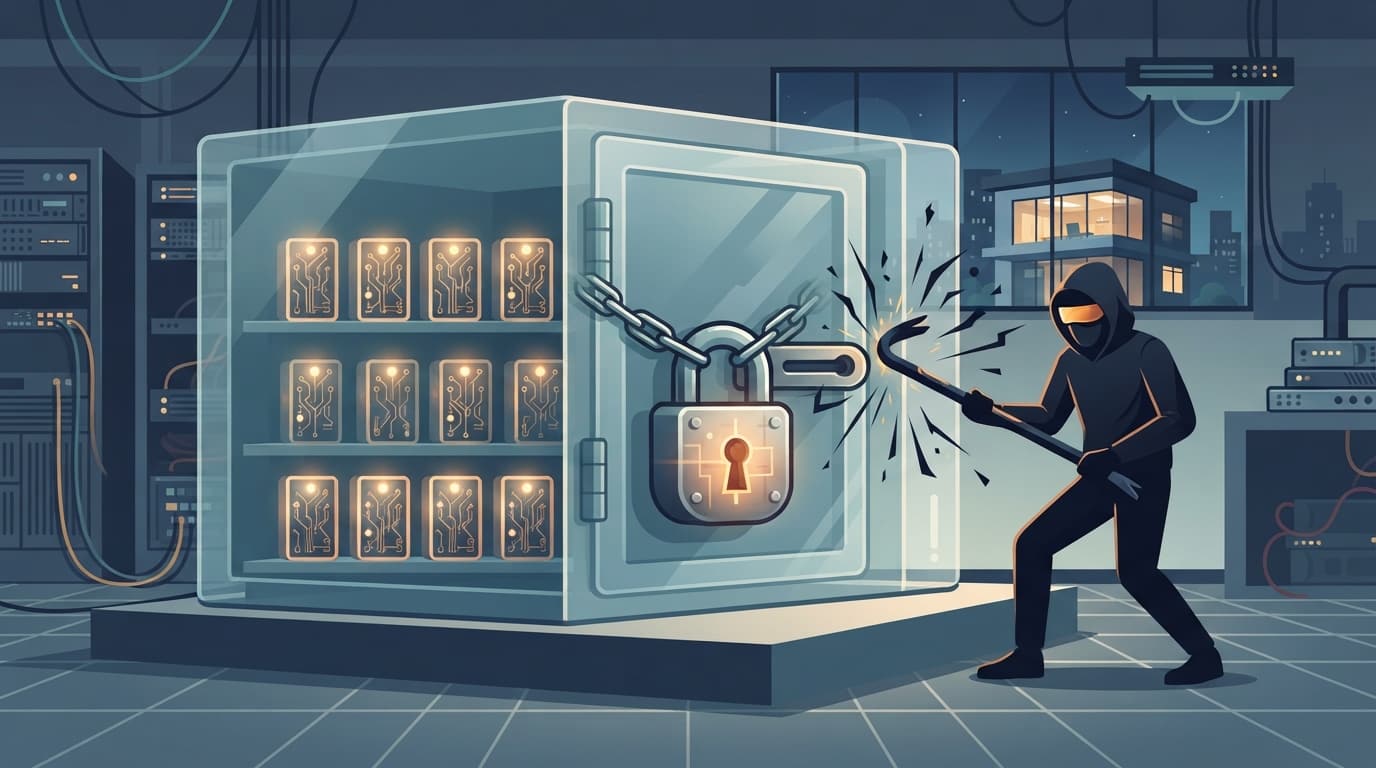
Ransomware crews have learned a simple lesson: if they can wreck your backups, you'll pay. That's why most attacks now go after backup files before they encrypt anything else. Immutable backups are the answer to that tactic. They're backup copies that can't be changed, encrypted, or deleted for a set period, not even by someone holding your administrator password.
This guide explains how immutable backups work, what they protect against (and what they don't), and what a realistic setup looks like for a small business without an enterprise IT budget.
Key Takeaways
- Immutable backups lock each backup copy for a retention period you choose, so ransomware, a rogue insider, or a stolen admin login can't delete or encrypt it.
- Attackers target backups in almost every ransomware attack, and they succeed more than half the time when backups aren't locked.
- Immutability doesn't stop data theft, doesn't clean infected files, and doesn't help if your retention window is too short or nobody tests restores.
- For most small businesses, the practical setup is a local backup for fast restores plus an immutable cloud copy managed with separate credentials and MFA.
What Are Immutable Backups?
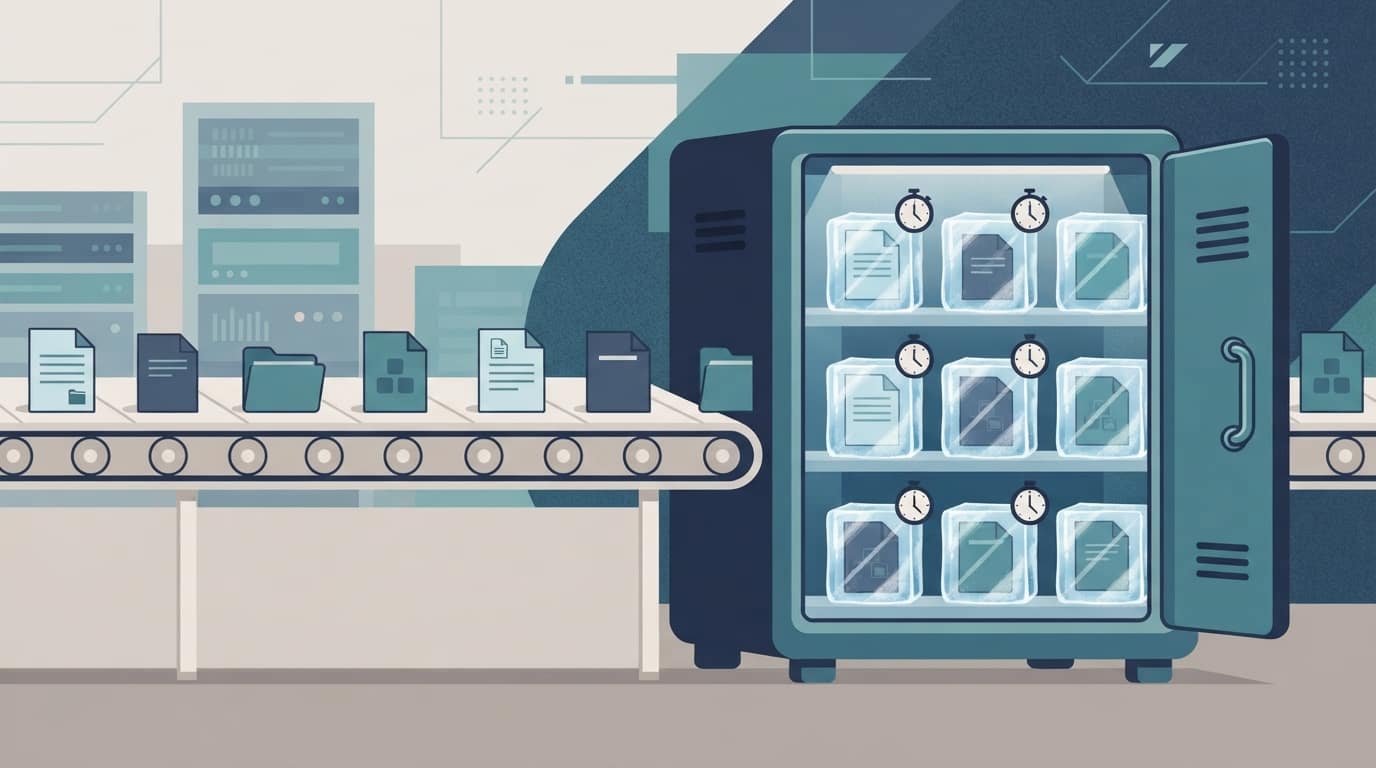
Immutable backups are copies of your data that, once written, are locked in place until a retention date you set. During that window, nobody can edit, overwrite, encrypt, or delete them. That includes employees, your IT provider, and any attacker who gets inside your network. When the retention date passes, the copy ages out normally and makes room for newer ones.
Compare that with a traditional backup. A normal backup is just files sitting on a drive, a server, or in a cloud account. Anyone with the right permissions can delete them, and malware running with those permissions can encrypt them just as easily as it encrypts your production data. A traditional backup protects you from a failed hard drive. It doesn't protect you from someone who's actively trying to destroy your ability to recover.
The technical term you'll hear is WORM storage, short for "write once, read many." Data can be written one time and read as often as you need, but it can't be changed.
Why Ransomware Goes After Your Backups First
Modern ransomware isn't a smash-and-grab. Attackers often sit inside a network for days or weeks, mapping systems and stealing passwords before they launch the encryption. One of the first things they look for is the backup system, because a business that can restore from backup has no reason to pay.
The numbers back this up. In Sophos's State of Ransomware research, 94% of organizations hit by ransomware said attackers tried to compromise their backups, and 57% of those attempts succeeded. Sophos also found that organizations whose backups were compromised were far more likely to pay the ransom.
Here's how a typical attack on unprotected backups plays out:
- Initial access. An employee clicks a phishing link, or an attacker logs in with a password stolen in an unrelated breach.
- Privilege escalation. The attacker works their way up to a domain administrator or backup administrator account.
- Backup destruction. Using those legitimate credentials, they delete backup jobs, wipe the backup server, and empty the cloud backup account.
- Encryption and demand. Only then do they encrypt your servers and workstations and send the ransom note.
Step 3 is the one immutable backups break. Because the lock is enforced by the storage itself, a valid admin password isn't enough to delete a protected copy. The attacker can still cause damage, but you keep a clean way back.

How Immutable Backups Work
There are a few common ways to make a backup immutable. Your IT provider will pick based on where your data lives and how fast you need to restore it.
- Cloud object lock. Cloud storage services such as Amazon S3 Object Lock, Azure immutable storage, and S3-compatible providers can lock each backup file until a set date. This is the most common route for small businesses because there's no hardware to buy.
- Hardened backup appliances and repositories. Some backup vendors sell on-site appliances or locked-down Linux storage servers that refuse delete commands until retention expires. These give you fast local restores with immutability built in.
- Immutable snapshots. Many business-grade backup platforms store each backup as a read-only snapshot that can't be modified after it's created.
- Offline media. Tape and removable drives stored disconnected from the network are physically out of reach. They're effective but slow and depend on someone following a manual routine every time.
Governance mode vs. compliance mode
Cloud object lock usually comes in two flavors, and the difference matters. In governance mode, a user with special permissions can still remove the lock early. That's useful for testing, but it means a stolen high-level account could undo your protection. In compliance mode, nobody can shorten the lock or delete the data before the retention date, including the account owner. For ransomware protection, compliance mode (or its equivalent in your backup platform) is what you want for at least one copy.
Immutable vs. Traditional vs. Air-Gapped Backups
These three terms get mixed up constantly. Here's how they compare:
| Backup type | Can an attacker with admin access delete it? | Restore speed | Typical small business use |
|---|---|---|---|
| Traditional backup | Yes | Fast | Everyday restores of deleted files and failed hardware |
| Air-gapped backup | Not while it's disconnected, but a manual process can be skipped or forgotten | Slow | Rotating offline drives or tape |
| Immutable backup | No, until the retention date passes | Fast to moderate | Cloud copy with object lock, or a hardened appliance |
The strongest setups combine them. A copy that's both immutable and logically separated from your network (different credentials, different provider, no shared login with your main systems) gives you most of the benefit of an air gap without depending on someone to swap drives every Friday. This is the "1" that the 3-2-1-1-0 backup rule adds on top of the classic 3-2-1 approach: one copy that's offline or immutable.
What Immutable Backups Won't Protect You From
Immutable backups are often sold as ransomware-proof. They're a huge improvement, but they have limits that every business owner should understand before relying on them.
- Data theft. Many attackers now steal data before encrypting it and threaten to publish it. A locked backup lets you recover, but it does nothing about the copy the criminals already have. You still need email security, endpoint protection, and access controls to prevent the breach in the first place.
- Infected backups. Immutability preserves whatever was written, good or bad. If malware sat quietly on a server for three weeks, your last three weeks of backups may contain it. You need enough history to reach back past the infection and a restore process that scans before bringing systems online.
- A retention window that's too short. If copies lock for only seven days and the attacker was inside for ten, every clean copy may have aged out. Most businesses need at least 30 days of locked history, and often more.
- Data that was never backed up. Microsoft 365 mailboxes, SharePoint, and line-of-business cloud apps are often left out entirely. Microsoft's built-in retention isn't the same as a backup, and an attacker with a global admin account can change it.
- Restores nobody has tested. A locked backup that won't boot is still useless. Immutability protects the file, not the process of getting your business running again.
What Immutable Backups Look Like for a Small Business
You don't need an enterprise data center to get immutable backups in place. Here are three realistic setups we see at Southern California businesses:
- 10-person office, cloud-first. Files live in Microsoft 365 and a cloud accounting app. A third-party Microsoft 365 backup service copies mailboxes, OneDrive, SharePoint, and Teams daily into immutable cloud storage with 90-day retention. Laptops get a managed backup agent that also writes to locked cloud storage.
- 30-person firm with an on-site server. A backup appliance in the office takes hourly snapshots of the file server and practice-management database for fast local restores. Every night, the appliance replicates to a separate cloud vault in compliance mode with 60 to 90 days of locked history. The cloud vault uses its own credentials that aren't tied to the office domain.
- Healthcare or legal practice with retention rules. Same structure as above, plus longer immutable retention for records that regulations or client agreements require you to keep. The backup provider signs a Business Associate Agreement where HIPAA applies, and restore tests are documented for audits.
Costs scale with how much data you keep and for how long. For most small businesses, the immutable cloud copy is a modest monthly line item, especially compared with downtime. To decide how far back and how quickly you need to recover, start with your RTO and RPO targets. They tell you how often to back up and how fast restores need to be.
If you'd like a quick visual summary, this short video shows a simple way to check whether backup storage is truly immutable or only claims to be:
Best Practices for Setting Up Immutable Backups
Turning on a lock setting is the easy part. These practices make immutable backups hold up during a real incident:
- Set retention based on how long attackers hide, not on storage cost. Thirty days is a reasonable minimum for locked copies. Sixty to ninety days gives you room to reach back past an infection that went unnoticed.
- Use compliance mode for at least one copy. Governance mode is fine for convenience copies, but your last line of defense should be a copy nobody can release early.
- Separate the credentials. The account that manages your immutable backups should not be a normal domain admin account, should not share a password with anything else, and should require multifactor authentication (MFA). If possible, use a different provider or tenant from your production systems.
- Follow 3-2-1-1-0. Keep three copies of your data on two types of storage, one offsite, one offline or immutable, and zero errors on your restore tests.
- Monitor and alert. Failed jobs, sudden spikes in changed data, and attempts to change retention settings should all trigger alerts to someone who will act on them that day.
- Test restores on a schedule. Restore individual files monthly and a full server at least quarterly. Our guide on how to test your disaster recovery plan walks through the process step by step.
- Document the recovery steps. Write down where the immutable copy lives, who holds the credentials, and the order systems come back online. In the middle of an attack is the wrong time to figure that out.

Questions to Ask Your IT Provider About Immutable Backups
If someone else manages your backups, these questions will tell you quickly whether you're actually protected:
- Which of our backup copies are immutable, and where do they live?
- How long is each copy locked, and is it governance mode or compliance mode?
- Could a stolen domain admin password delete our offsite backups?
- Are Microsoft 365 and our other cloud apps included, or only on-site servers and PCs?
- When was the last full restore test, and how long did it take?
- Who gets alerted if a backup fails or someone tries to change retention settings?
Vague answers to any of these are a sign your backups may not survive a determined attacker.
How TechWorks Protects Your Business With Immutable Backups
TechWorks designs, monitors, and tests backups for small and midsize businesses across Southern California. Our data backup and disaster recovery services are built around layered protection:
- Local backups for fast everyday restores, plus an offsite copy that ransomware can't delete.
- Backup accounts secured with separate credentials and MFA, isolated from your everyday network logins.
- Microsoft 365 backup so email and shared files are covered, not just servers.
- Managed workstation backups for the files that live on laptops and desktops.
- Daily monitoring and scheduled restore tests, so you know your backups work before you need them.
Not sure whether your current setup includes immutable backups? Contact TechWorks to schedule a backup review. We'll show you which copies are protected, which ones an attacker could still delete, and what it would take to close the gap.
FAQs
What is an immutable backup in simple terms?
An immutable backup is a copy of your data that's locked for a set period after it's written. Until that retention date passes, nobody can change, encrypt, or delete it, including administrators and attackers who've stolen an admin password.
Can immutable backups be deleted?
Not during the retention period, if they're set up correctly. In compliance-style locking, even the account owner can't remove the lock early. Once the retention date passes, the copy can be deleted or aged out normally. Some platforms offer a governance mode that privileged users can override, which is weaker protection against a stolen account.
Do immutable backups stop ransomware?
They don't stop the attack itself, but they take away the attacker's leverage. Even if your servers and regular backups are encrypted, immutable backups give you a clean copy to restore from without paying. You still need security controls to prevent the breach and protect against data theft.
How long should immutable backups be kept?
Thirty days is a reasonable minimum for locked copies, and 60 to 90 days is safer because attackers often hide in a network for weeks before striking. Regulated businesses may need longer retention for certain records. Your recovery point and recovery time objectives should guide the final numbers.
Is an immutable backup the same as an air-gapped backup?
No. An air-gapped backup is physically or logically disconnected from your network, while immutable backups stay reachable but can't be altered. Many businesses combine the two by keeping an immutable cloud copy with separate credentials that aren't tied to their main network.